
In This Guide Show
You can design a neat wedding invitation card with ChatGPT or Gemini by describing the style, colours, layout and the exact text you want on the card. The copy-ready prompts below cover a traditional South Indian card, a modern minimal card, a WhatsApp e-invite and a save-the-date. Replace everything in brackets, then always check the spelling of names, dates and the venue before you share or print.
Why use AI for an invitation card?
Wedding season brings a lot of small design jobs: the main card, a digital invite for WhatsApp, a save-the-date for close family, and sometimes a separate card for the reception. A designer is still the best choice for a printed card you will send to hundreds of people. But AI image tools are useful for quick drafts, for trying many styles in a few minutes, and for simple digital invites you share on your phone.
- Fast drafts: try five colour ideas before you meet the printer.
- Digital invites: a 9:16 card fits WhatsApp status and Instagram stories well.
- Free to try: both ChatGPT and Gemini let you create images on free plans, with daily limits that change from time to time.
Before you start: three rules for clean text
AI tools have become much better at writing text inside images, but they still make mistakes with long sentences, Indian names and small print. Follow these rules and you will need fewer retries.
- Keep the text short. Names, date, time, venue and one line of blessing. Put long family details in a separate message.
- Put the exact text in quotes inside the prompt, and say “spell exactly as written”.
- Ask for one language at a time. English text works most reliably. If you need Telugu, Hindi or Tamil text, check every letter carefully, because AI tools often get regional scripts wrong. A safer method is to create the design without text and add the regional text later in Canva or a photo editor.
If you are new to writing prompts, read our guide on how to write better AI prompts first. It explains why clear details give better results.
Prompt 1: Traditional South Indian wedding card
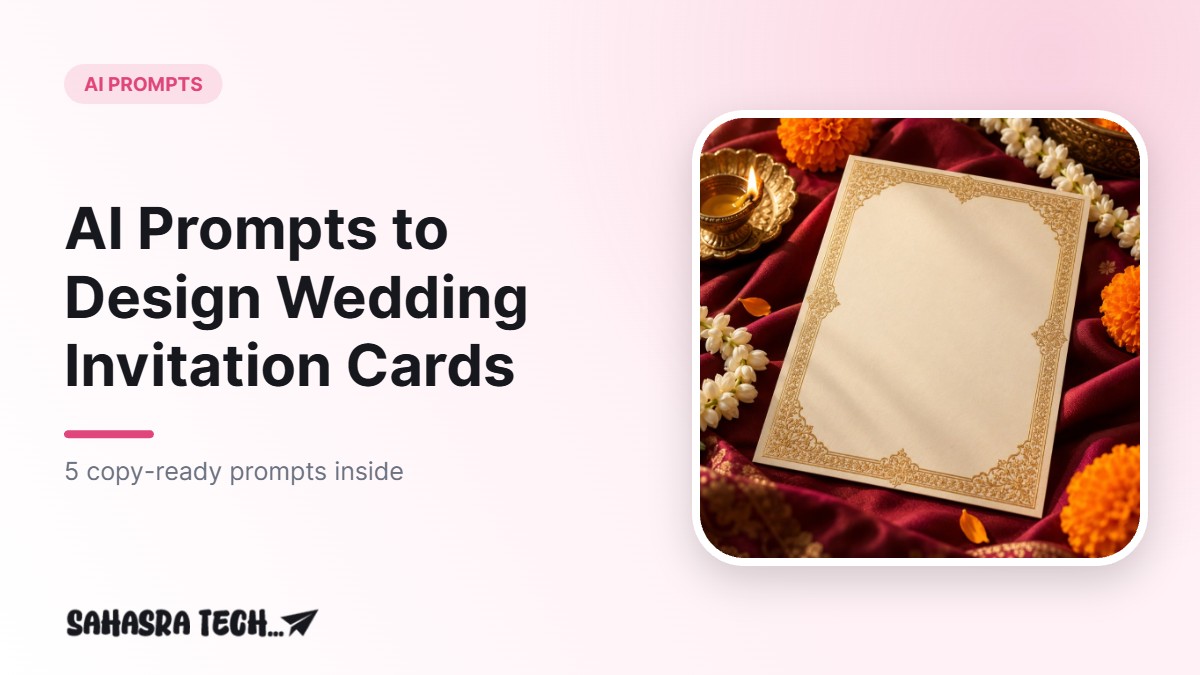
Design a traditional South Indian wedding invitation card, portrait 4:5. Deep maroon background with gold borders, a small gold Ganesha line drawing at the top centre, mango leaf (thoranam) pattern along the top edge, and soft marigold flower corners. Elegant serif font in gold.

Text, spell exactly as written, centred:
"Together with their families"
"[BRIDE NAME] weds [GROOM NAME]"
"[DAY], [DATE MONTH YEAR] at [TIME]"
"[VENUE NAME], [CITY]"

Clean layout, generous spacing, no extra words, no watermark, high resolution, print-ready look.
How to use it: paste it in ChatGPT or Gemini and replace the brackets. If the gold looks too yellow, add “antique gold, slightly muted”. If you do not want a religious symbol, replace the Ganesha line with “a small kalash and lamp motif” or “a simple floral motif”.
Prompt 2: Modern minimal wedding card
Create a modern minimal wedding invitation card, portrait 4:5. Ivory paper texture background, thin sage green line art of jasmine flowers in one corner, lots of white space. Font: elegant thin serif for names, simple sans-serif for details, dark green text.

Text, spell exactly as written:
"[BRIDE NAME] & [GROOM NAME]"
"are getting married"
"[DATE MONTH YEAR]"
"[VENUE NAME], [CITY]"

No people, no extra decoration, no watermark. Calm, premium, printable design.
What to change: swap “sage green” for your wedding colour, for example “dusty pink” or “navy blue”. Swap jasmine for “lotus” or “rose” if you prefer. Minimal designs usually come out cleaner because there is less for the AI to get wrong.
Prompt 3: WhatsApp e-invite (9:16)
Design a vertical 9:16 digital wedding e-invite for WhatsApp. Soft peach to cream gradient background, hanging marigold garlands at the top, small diya lamps at the bottom, gentle bokeh lights. Large, easy-to-read text that stays clear on a phone screen.

Text, spell exactly as written:
"Wedding Invitation"
"[BRIDE NAME] & [GROOM NAME]"
"[DATE MONTH YEAR] | [TIME]"
"[VENUE NAME], [CITY]"
"Your presence is our blessing"

Keep all text inside the centre safe area, away from the top and bottom edges. No watermark.
Tip: the “safe area” line matters. WhatsApp status and Instagram stories cover the top and bottom of the screen with buttons, so text near the edges can get hidden.
Prompt 4: Save-the-date with your own photo
This one uses a photo of the couple. Upload a clear photo where both faces are visible, and only use photos of people who have agreed.
Use the couple from the uploaded photo. Keep their faces, skin tone and features exactly the same, do not change their identity. Create a save-the-date card, portrait 4:5: the couple standing together in soft evening light, warm film-photo colours, a simple floral frame around them.

Add this text at the bottom, spell exactly as written:
"Save the Date"
"[NAMES]"
"[DATE MONTH YEAR] | [CITY]"

Natural look, no extra people, no watermark.
Common problem: the faces change slightly. If that happens, reply in the same chat with “keep the faces exactly like the original photo, only change the background and frame”. Sometimes it takes two or three tries.
Prompt 5: Fix spelling without redesigning
When the design looks good but one word is wrong, do not start again. Reply in the same chat:
Keep this exact design, colours and layout. Only fix the text: change "[WRONG TEXT]" to "[CORRECT TEXT]". Do not change anything else.
If the tool keeps getting a name wrong, ask it for the same design with no text at all, then add the text yourself in Canva, Google Photos markup or any editor you are comfortable with. This is often the fastest way to a card with perfect spelling.
Printing and sharing tips
- Resolution: AI images are usually good for phones but may not be sharp enough for large prints. Show the file to your printer and ask if it will print well at your card size.
- Double-check details: read the date, day, time and venue aloud with a family member. One wrong digit means reprinting.
- Keep a text version: send the venue location as a Google Maps link in the message, not only inside the image.
- Respect copyright: do not ask for famous characters, film posters or brand logos on your card.
Common mistakes to avoid
- Putting the whole family list in one prompt. Long text causes spelling errors.
- Asking for “Telugu and English” together in one image and not checking the regional text.
- Not saying the size. Always mention 4:5 for print-style cards and 9:16 for phone invites.
- Uploading photos of guests or children without permission.
FAQ
Can ChatGPT write Telugu or Hindi text on a wedding card?
It can try, but regional scripts often come out with wrong letters. Check every word, or create the design without text and add the regional text yourself in an editor.
Which is better for invitation cards, ChatGPT or Gemini?
Both can create good designs. Results change with each app update, so try the same prompt in both and keep the one you like.
Is an AI-made card good enough for printing?
It is fine for small prints and digital sharing. For large printed cards, ask your printer to check the file quality first.
Is it free to make invitation cards with AI?
Both ChatGPT and Gemini offer image creation on free plans with daily limits. Paid plans give more images per day.
How do I fix one wrong word without losing the design?
Reply in the same chat and ask it to keep the exact design and change only that word. If it still fails, add the text yourself in an editor.