
In This Guide Show
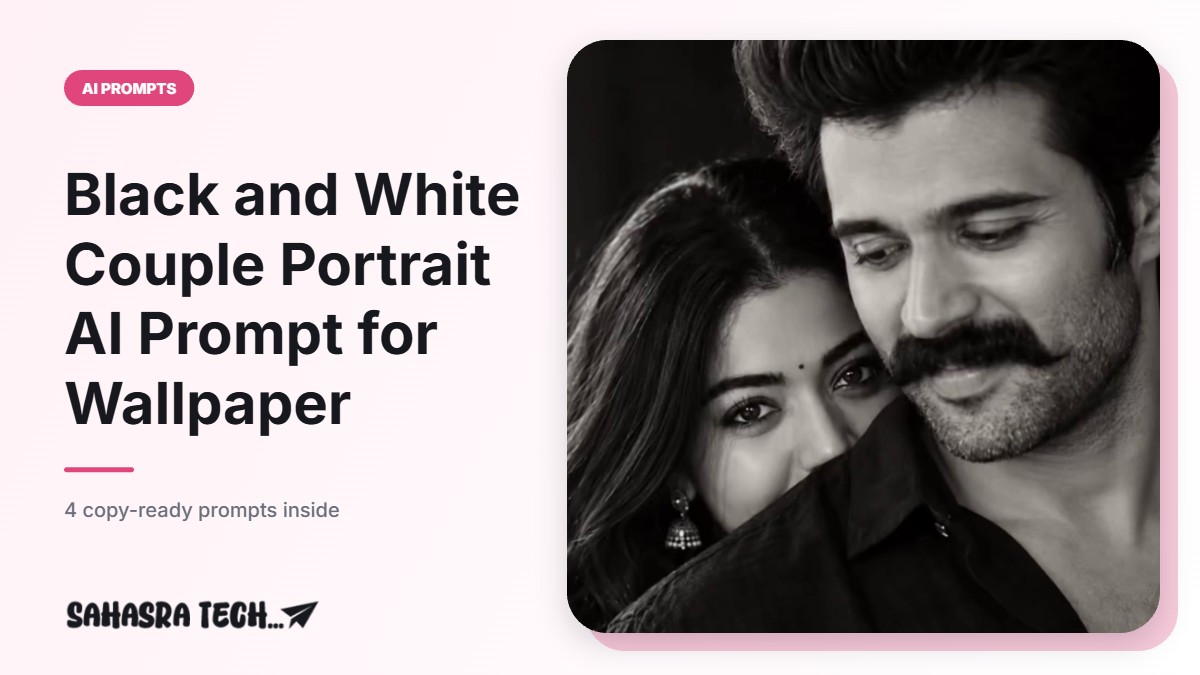
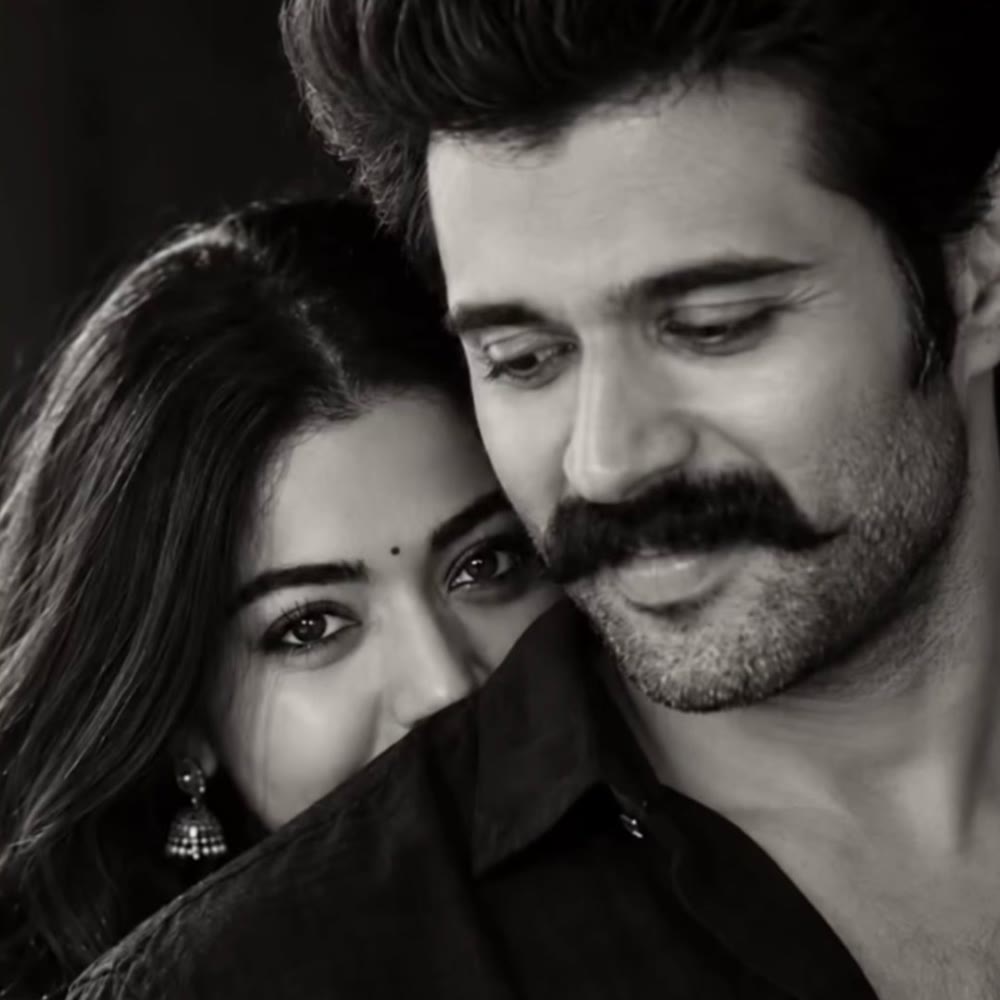
This prompt creates a moody black and white couple portrait: the man in the foreground looking down with a gentle smile, and the woman peeking over his shoulder with only her eyes visible, looking straight at the camera. It is framed vertically in 9:16, so the result fits a phone lock screen. Copy the main prompt below, upload a clear photo of each person, and generate it in Gemini or ChatGPT.
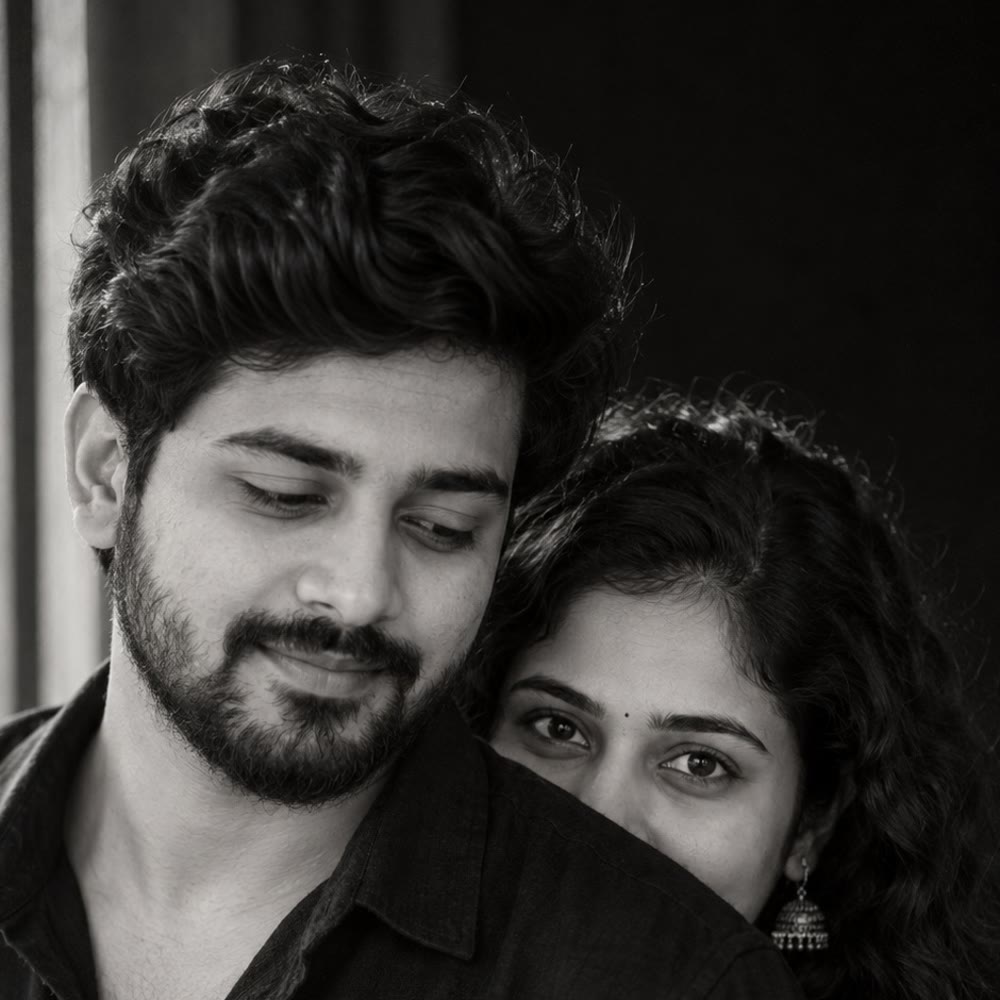
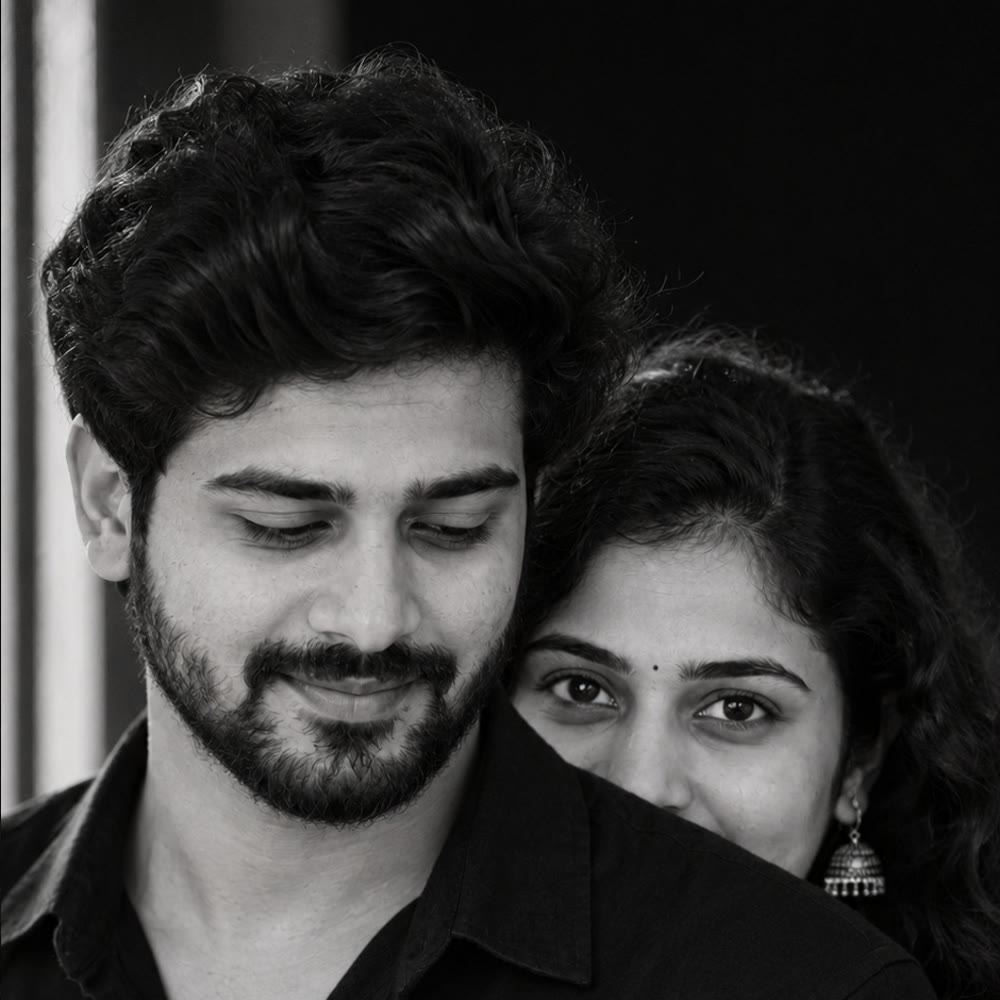
About the example images: the first picture is the result of the main prompt. The other three were made in ChatGPT from two AI-generated sample faces, not real people. All pictures on this page are cropped to a square; the prompt itself gives a vertical 9:16 image.
The Main Prompt
Black and white cinematic couple portrait, vertical 9:16. A young man in the foreground, cropped from head to chest, head slightly turned and tilted down, eyes looking downward, a faint gentle smile. Short dark voluminous wavy hair, neatly trimmed full beard, wearing a black collared linen shirt with the top buttons open. Behind his right shoulder, a young woman peeks out so that only her forehead, eyes and upper cheek are visible, her chin hidden behind his shoulder. She has long, dark, curly, voluminous hair, a small round bindi on her forehead, a silver oxidized jhumka earring, defined eyebrows and kohl-lined eyes. She looks straight into the camera with an intense, soft, curious gaze. Dark, near-black background with a thin vertical strip of light at the far left edge. Soft directional window light from the front-left, deep shadows, high contrast, rich blacks, fine film grain. Shallow depth of field, shot on 85mm lens at f/1.8, sharp focus on her eyes, the man slightly soft. Moody, romantic, intimate, fine-art monochrome photography, ultra-detailed skin texture, realistic. Add a very small calligraphy text logo "Sahasra Tech" in the bottom right corner.
Before you use it: the last line adds a small “Sahasra Tech” signature. Replace it with your own name or delete that sentence if you do not want any text on the picture.
How to Use It With Your Own Photos
Used as it is, the prompt gives a couple with random faces. To get a portrait of you and your partner, upload your photos and add one instruction at the top.
- Pick one clear photo of each person: face to the camera, good light, no sunglasses, no heavy filter.
- Open the Gemini app or ChatGPT and attach both photos.
- Paste the line below first, then paste the main prompt right after it.
- Send it and wait for the image. If a face looks different, use the correction prompt further down.
Use the two attached photos as the face reference. Photo 1 is the man and photo 2 is the woman. Keep both faces, skin tones and facial features exactly as in the photos. Do not change their age or face shape. Follow the description below only for pose, clothing, lighting and style.
Upload only your own photos, or photos of people who have agreed to it. Do not use pictures of strangers or public figures.
Which Tool Works Best?
- Gemini app: tap the plus button, attach the photos, paste the prompt and send. Images made in the Gemini app carry Google’s AI watermark.
- ChatGPT: attach the photos in a new chat, paste the prompt and send. It can take a little longer, and free accounts have a daily image limit.
Both tools have free use with limits that change from time to time, so check what your own account shows. Results also differ from one attempt to the next. If the first image is not right, run the same prompt again or try the other tool. Our beginner guide to free AI image tools covers the basics if you are new to this.
What You Can Change
- His look: change “neatly trimmed full beard” to “thick moustache with light stubble” or “clean shaven”, and edit the hair description to match.
- Her look: swap “long, dark, curly, voluminous hair” for straight hair or a braid; change the jhumka to studs or remove the bindi.
- Clothing: replace the black linen shirt with a white kurta or a dark sherwani for a wedding feel.
- Mood: make her “smiling with her eyes” instead of “intense”, or ask both to look at the camera.
- Side: change “behind his right shoulder” to “behind his left shoulder” to flip the composition.
Change one or two things at a time. When many details are edited together, the pose often breaks. For more on wording, see how to write better AI prompts.
Lock Screen Version With Space for the Clock
On a lock screen, the clock sits on the upper part of the picture. If the faces start too high, the time covers the hair or forehead. Send this follow-up in the same chat to leave room at the top:
Recreate the same image as a phone lock screen wallpaper in 9:16. Keep the top one-third of the frame as empty dark background for the clock, and place both faces in the lower two-thirds. Do not change the faces, pose, lighting or black and white style.

Correction Prompt When Faces or Pose Go Wrong
Redo the image with these fixes. Use my uploaded photos as the only reference for both faces and match them exactly. The woman must be behind the man's shoulder with only her forehead, eyes and upper cheek visible, looking straight at the camera. The man looks down, not at the camera. Keep it fully black and white with no colour tint.
How to use it: send it as a reply in the same chat and delete the lines you do not need. If two tries still fail, start a new chat with sharper source photos.
Common Mistakes to Avoid
- Dark or blurry source photos. The tool guesses the missing details, and that is where faces change.
- Group photos as reference. Use one photo per person so the tool does not mix up faces.
- Expecting the exact same picture. AI images vary on every attempt. Small details such as the earring, the strip of light or the beard may come out differently from the example.
- Not checking the image. Zoom in on eyes, hairline, the earring and the shirt collar before saving.
- Misspelled logo text. AI tools sometimes get small text wrong. If the signature is misspelled, remove that line and add your name later in a photo editor.
- Passing it off as a real photo. It is an AI-made picture. Say so if you share it publicly.
How to Set It as Your Wallpaper
Download the image from the chat to your gallery. On iPhone, open the photo, tap the share button and choose Use as Wallpaper. On Android, open the photo in your gallery app, open the menu and choose the set as wallpaper option; the wording differs by phone brand. Pinch to adjust the position so that the clock does not cover the faces.
FAQ
Which AI tool can I use for this couple portrait prompt?
The prompt is written in plain language and can be used in the Gemini app or ChatGPT. Both let you attach photos and paste a prompt, with daily limits on free accounts that change over time.
How do I get my own faces in the portrait?
Attach one clear photo of each person and add an instruction at the top telling the tool to keep both faces exactly as in the photos. Then paste the main prompt after it.
Why does my result look different from the example?
AI image tools give a different result on every attempt, so details such as hair, beard, earring or lighting can vary. Run the prompt again or use the correction prompt to fix specific parts.
How do I stop the lock screen clock from covering the faces?
Ask for a version that keeps the top one-third of the frame as empty dark background and places both faces in the lower two-thirds. The follow-up prompt in this article does that.