
In This Guide Show
You can turn an ordinary selfie into a clean, office-ready LinkedIn photo by uploading it to Gemini or ChatGPT and giving a prompt that changes only the clothes, background and lighting while keeping your real face. The six prompts below are written for exactly that. Copy one, upload a clear photo of yourself, and change the words in square brackets.
What You Need Before You Start
- A clear source photo. Face the camera, stand near a window in daylight, keep the phone at eye level and leave your shoulders in the frame. Avoid filters, sunglasses, caps and group photos.
- A tool that accepts photo uploads. The Gemini app and ChatGPT both let you attach a photo and describe the edit in plain words. Both have free use with daily limits, and the limits change from time to time, so check what your own account shows.
- A realistic goal. The aim is a better-lit, better-dressed version of you, not a different person. If the result does not look like you, do not use it.
If you have never edited a picture with AI before, our beginner guide to free AI image tools explains the basics first.
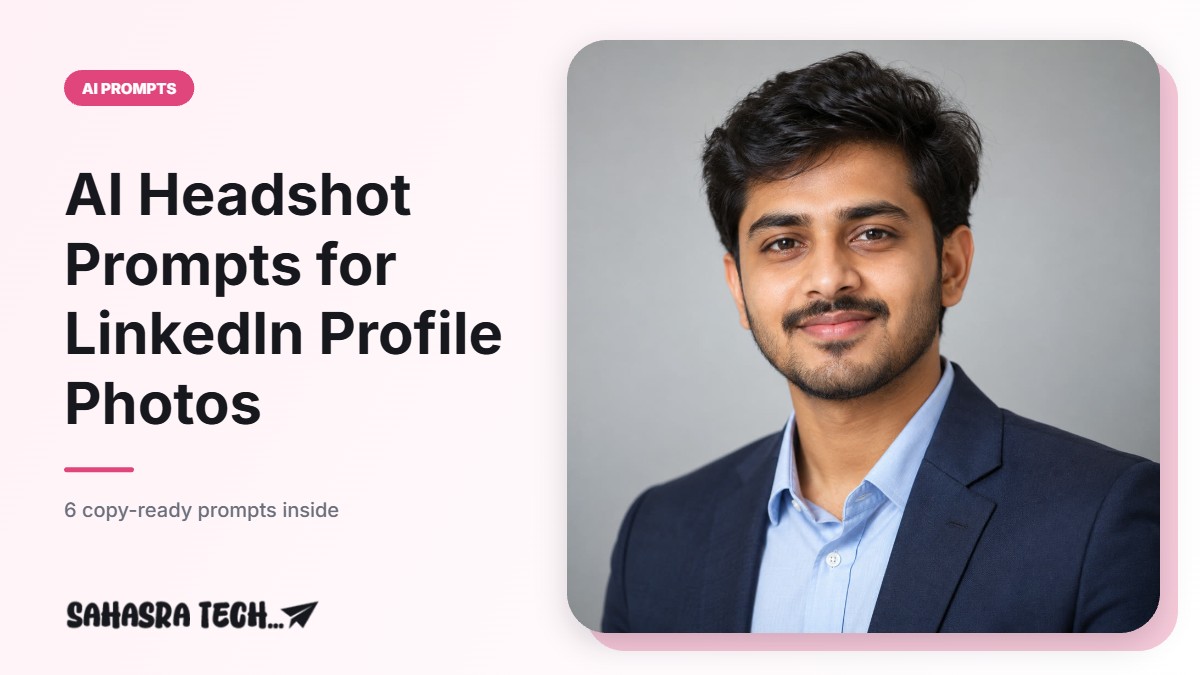
Prompt 1: Classic Studio Headshot
Use the attached photo of me. Create a professional LinkedIn headshot.
Keep my face, skin tone, hairstyle, facial hair and expression exactly the same. Do not change my age or face shape.
Change only these things: dress me in a [navy blazer with a light blue shirt], use a plain light grey studio background, and add soft, even studio lighting.
Framing: head and shoulders, centred, looking at the camera. Square 1:1 image. Photorealistic, natural skin texture, no text, no logo.
How to use it: this is the safest starting point for most job profiles. Swap the clothing in brackets for what people in your field normally wear, for example a plain kurta, a formal saree, a shirt without a blazer or a simple blouse.
Prompt 2: Modern Office Background
Use the attached photo of me. Keep my face, skin tone, hair and expression exactly as they are.
Place me in a bright modern office with the background softly blurred. Dress me in [a white formal shirt]. Natural window light from the left side.
Head and shoulders, slight smile as in my photo, square 1:1, photorealistic, no text, no logo, no extra people.
How to use it: good for corporate, IT and sales roles where a studio backdrop feels too stiff. If the office looks crowded, add the line “keep the background simple with no screens or signboards”.
Prompt 3: Fresher or Student Profile
Use the attached photo of me. Do not change my face, skin tone or hairstyle.
Create a neat profile photo for a student applying for internships. Dress me in [a plain light-coloured collared shirt]. Background: plain off-white wall. Soft daylight, no harsh shadows.
Head and shoulders, friendly and confident look, square 1:1, photorealistic, no text.
How to use it: freshers do not need a blazer. A clean shirt and a plain wall look honest and suit campus placement profiles. Pair the photo with a strong CV using our guide on writing a resume with ChatGPT or Gemini.
Prompt 4: Traditional Formal Wear
Use the attached photo of me. Keep my face, skin tone, hair and expression exactly the same.
Dress me in [a simple formal cotton saree in a solid colour / a plain kurta with a Nehru jacket]. Keep jewellery minimal. Background: plain warm beige studio backdrop. Soft front lighting.
Head and shoulders, square 1:1, photorealistic, natural skin texture, no text, no logo.
How to use it: keep only one of the two clothing options in the brackets. This works well for teachers, bankers, government-sector applicants and anyone who prefers Indian formal wear on a professional profile.
Prompt 5: Fix the Photo Without Changing Clothes
Use the attached photo of me. Do not change my face, hair, clothes or pose.
Only do these edits: remove the background and replace it with a plain light grey backdrop, even out the lighting on my face, and crop to head and shoulders in a square 1:1 frame.
Keep it photorealistic. Do not smooth my skin or change my features.
How to use it: use this when you already have a decent photo in formal clothes and only the background is the problem. Because the tool is asked to change less, the face usually stays closer to the original.
Prompt 6: Correction Prompt When the Face Changes
The face in the result does not match my original photo. Redo the image.
Use my uploaded photo as the only reference for my face. Keep the same eyes, nose, jawline, skin tone and hairline. Do not make me look younger, slimmer or fairer.
Keep the clothing and background from your last result.
How to use it: send this as a follow-up message in the same chat when the first result looks like a cousin of you rather than you. If two attempts still fail, start a new chat with a sharper, better-lit source photo.
Which Tool Should You Use?
All six prompts work in both tools, because they describe the edit in plain language.
- Gemini app: tap the plus button, attach your photo, paste the prompt and send. Images made in the Gemini app carry Google’s AI watermark, so keep that in mind before using the picture on a public profile.
- ChatGPT: attach the photo in a new chat, paste the prompt and send. Image creation can take a little longer and free accounts have a daily image limit.
Results differ between tools and even between two attempts in the same tool. Try the same prompt in both and keep the one that looks most like you. For more control over wording, see our guide on how to write better AI prompts.
Common Mistakes to Avoid
- Using a dark or blurry selfie. The tool has to guess missing details, and the guess is where your face starts to change.
- Asking for too much at once. Clothes, background, pose and hairstyle in one prompt often gives a stranger. Change clothes and background first, then ask for small fixes.
- Accepting plastic skin. Over-smooth skin is the easiest sign of an AI photo. Add “natural skin texture, do not retouch my face” if it happens.
- Not checking details. Zoom in on ears, teeth, spectacles, collar and fingers before you download.
- Using a photo that is not really you. Recruiters will meet you on a video call, so an over-edited photo works against you.
Privacy Tips Before You Upload a Selfie
Upload only your own photo, never someone else’s without their permission. Use the official Gemini and ChatGPT apps or websites, not unknown “free headshot” sites that ask for many photos and a payment.
FAQ
Can I make a LinkedIn headshot with AI for free?
Yes. The Gemini app and ChatGPT both let you upload a photo and edit it with a prompt on free accounts, but there are daily limits that change over time. Check the limit shown in your own account.
Why does the AI change my face?
It usually happens when the source photo is dark, blurry or taken from an angle, or when the prompt asks for many changes at once. Use a clear front-facing photo, ask only for clothing, background and lighting changes, and send the correction prompt if needed.
Is it okay to use an AI-edited photo on LinkedIn?
A profile photo should show what you really look like. Using AI to fix the background, lighting or clothing is a personal choice, but avoid results that change your face, age or skin tone.
Which photo works best as the source?
A recent front-facing photo in daylight with your head and shoulders visible, no filter, no sunglasses and nobody else in the frame.