
In This Guide Show
Came here from our reel? Here is the short answer: most Android phones already have Select to Speak. It is free, it is built into Android, and it takes about 30 seconds to turn on. Find your phone below, then follow the steps. Samsung users, check the Samsung row first, because it depends on your One UI version.
Which phones have Select to Speak?
Select to Speak comes from Google’s Android Accessibility Suite app. The current version of that app needs Android 9 or later, which covers most Android phones in use in India today, whether they cost ₹8,000 or ₹80,000. Menu paths below were checked in October 2026.
| Your phone | Works? | Where the setting is |
|---|---|---|
| OnePlus, OPPO, realme | ✅ Yes | Settings > Accessibility & convenience > Accessibility > Vision > Select to Speak. This is the phone in our screenshots. |
| Google Pixel, Motorola, Nothing | ✅ Yes | Settings > Accessibility > Select to Speak |
| Xiaomi, Redmi, POCO | ✅ Yes | Settings > Additional settings > Accessibility > Vision > Select to Speak |
| vivo, iQOO | ✅ Yes | Settings > Shortcuts & accessibility > Accessibility > Select to Speak. On newer OriginOS builds, look under Settings > System & updates > Accessibility. |
| Samsung Galaxy | ⚠️ Depends on One UI version | One UI 9 (Android 17): Settings > Accessibility > Select to Speak. One UI 8 or older: many Galaxy phones do not show it. See the Samsung fix ↓ |
| iPhone | ✅ Same feature, different name | Settings > Accessibility > Read & Speak, then turn on Speak Selection and Speak Screen. On iOS 18 and older the menu is called Spoken Content. |
Cannot see it in that place? Menu names change a little between Android versions. Open Settings, tap the search bar at the top and type Select to Speak. That works on every brand.
Still not there? Then the app behind it is missing or old. Open the Play Store, search for Android Accessibility Suite by Google LLC, install or update it, and check Settings again.
How to turn on Select to Speak (with screenshots)
It takes four taps. The screenshots are from the phone used in our reel. Your menus may look a little different, but the names are the same.
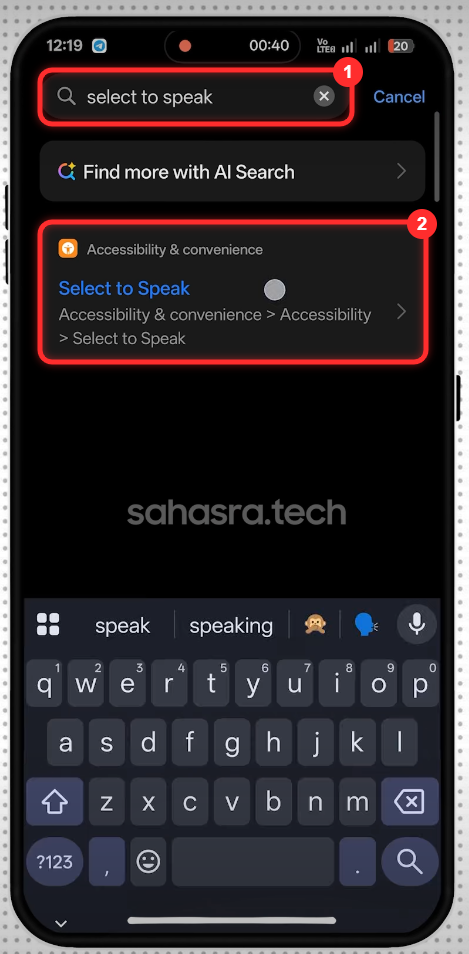
Step 1: Search for Select to Speak in Settings
Open Settings, tap the search bar at the top (1) and type select to speak. Then tap the Select to Speak result (2). The red boxes show where to tap.
Step 2: Or open it from the Accessibility menu
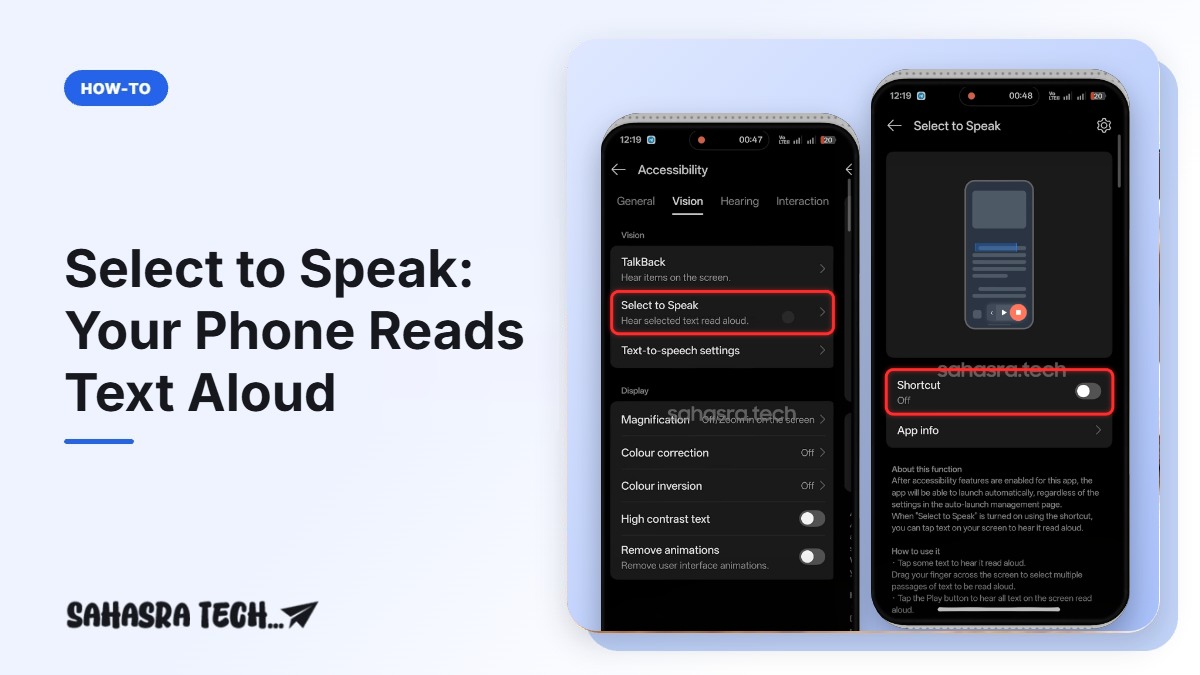
If you prefer the menu route, go to Accessibility, open the Vision tab and tap Select to Speak. It sits just below TalkBack. Do not turn on TalkBack by mistake.

Step 3: Turn on the Shortcut toggle
On the Select to Speak page, switch on Shortcut. On some phones this toggle is named Select to Speak shortcut.

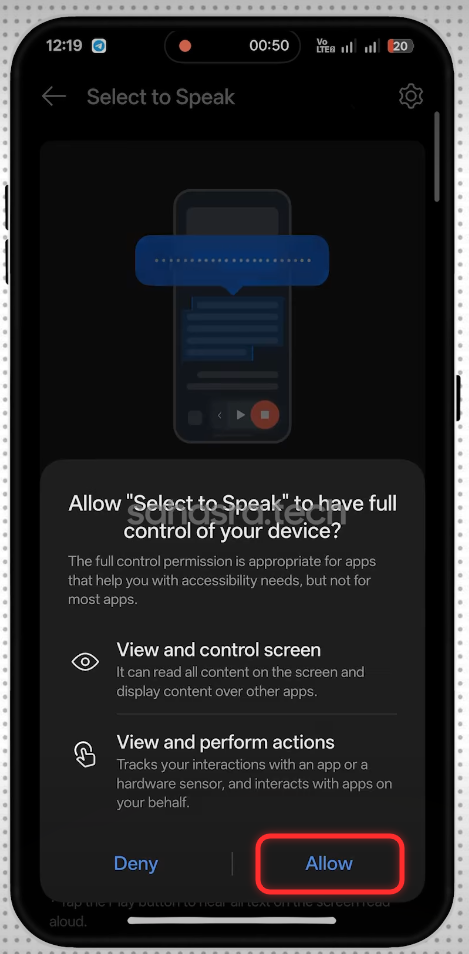
Step 4: Tap Allow
Android asks whether Select to Speak can view and control the screen. That permission is how it reads the text you tap. Tap Allow.
That is it. A small accessibility button now appears on the screen. On some phones it sits at the edge as a floating button, and on others it is in the navigation bar. If you use gesture navigation, the shortcut can be a two-finger swipe up from the bottom of the screen.
Phones that do not have Select to Speak (and what to do instead)
A few phones do not have it. If yours is in this list, you can still make the phone read text aloud another way.
| Phone | Why it is missing | What to do instead |
|---|---|---|
| Samsung Galaxy on One UI 8 or older | Samsung used its own accessibility app on these versions, and many models do not list Select to Speak. Samsung added it back in One UI 9. | First install Android Accessibility Suite from the Play Store, then check Settings > Accessibility > Installed apps. If it still does not appear, use Listen to this page in Chrome or the Google Lens method below, or update to One UI 9 when your phone gets it. |
| Entry-level Android (Go edition) phones | Some low-cost phones ship without the Android Accessibility Suite app. | Install Android Accessibility Suite from the Play Store. Select to Speak then appears under Settings > Accessibility. |
| Old Android phones (Android 8 or older) | The current Android Accessibility Suite needs Android 9 or later. Older phones may have an old copy that still works, but it no longer gets updates. | Search Settings for Select to Speak first. If it is not there, use Listen to this page in Chrome or the Google Lens method below. |
| Phones without Google Play (newer Huawei models) | Select to Speak comes from a Google app, and these phones do not have Google apps. | Open Settings > Accessibility and look for the built-in Select to Speak or screen reader option from the phone maker. |
| iPhone and iPad | Apple uses its own feature with a different name. | Open Settings > Accessibility > Read & Speak and turn on Speak Selection and Speak Screen. Then select any text and tap Speak, or swipe down with two fingers from the top of the screen to hear the whole page. |
| Keypad and feature phones (JioPhone and similar) | They do not run Android. | Not possible on these phones. |
Listen to this page in Chrome (best for articles and websites)
- Open the page in Chrome.
- Tap the three dots at the top right.
- Tap Listen to this page.
Chrome supports Telugu, Hindi, Tamil, Malayalam, Marathi and Bengali along with English. If the option is not in the menu, that page cannot be played.
The Google Lens method (for any text, including screenshots)
- Take a screenshot of the text you want to hear.
- Open the Google app or Google Photos and tap the Lens icon.
- Choose the screenshot, then tap Text.
- Select the text and tap Listen.
It is slower than Select to Speak because you need a screenshot each time, but it needs no settings change.
What is Select to Speak?
Select to Speak makes your phone read on-screen text aloud. You tap a message, a paragraph or a whole page, and the phone speaks it in Telugu, Hindi or English. It is part of the Android Accessibility Suite, an app made by Google that comes pre-installed on most Android phones. When it is on, you choose what you want to hear: one message, one paragraph, or the whole screen. The phone reads that text in a natural voice and highlights each word as it speaks.
It is different from a screen reader. Your phone behaves exactly as before, and it only speaks when you ask it to.
How to use Select to Speak
Once the shortcut is on, open any app with text in it, such as WhatsApp, Chrome, Gmail or a PDF.
- Read one item: tap the accessibility button, then tap the message or paragraph you want to hear.
- Read several items: tap the accessibility button, then drag your finger across the screen to draw a box around the text.
- Read the whole screen: tap the accessibility button, then tap the Play button.
- Control the reading: use the small control bar to pause, jump to the next or previous line, or make the voice faster or slower.
To stop at any time, tap the Stop button on the control bar.
Quick tip: on a web page you can also long-press to select text, tap More in the small menu and choose Read aloud. This works even without turning on the shortcut.
If you want it to keep reading while you scroll or switch apps, open Settings > Accessibility > Select to Speak > Settings and turn on Read in background.
Select to Speak can also read printed text through the camera. Open the Camera app, point it at the text, start Select to Speak and drag your finger across the words. Google lists English, French, German and Spanish for this camera reading, so it may not read printed Telugu. If your main need is reading printed text, Google Lens Tricks for Students, Shoppers and Travellers covers another way to do it.
How to make it read Telugu or Hindi
Select to Speak uses the text-to-speech engine on your phone. For Telugu or Hindi text to sound right, that language’s voice has to be installed.
- Open Settings > Accessibility > Text-to-speech output.
- Check that the preferred engine is Speech Recognition & Synthesis from Google. Some phones show it as Speech Services by Google.
- Tap the settings icon next to the engine name.
- Tap Install voice data.
- Choose Telugu (India) or Hindi (India) and download it.
Download the voice once on Wi-Fi. After that it works without internet.
Change the voice speed and pitch
On the same Text-to-speech output screen there are two sliders, Speech rate and Pitch. Move Speech rate to the left if the voice is too fast for you. Tap Play on that screen to hear a sample before you go back.
Who should turn this on
- Parents and grandparents who find small text hard to read
- Students who want to listen to notes or long articles while doing something else
- Anyone with tired eyes after a long day of looking at a screen
- People learning a language who want to hear how a word is pronounced
If you are setting up a phone for a child or an elder in the family, How to Set Up Google Family Link on Your Child’s Phone (Without Making Them Hate You) is worth reading next.
Select to Speak vs TalkBack
Both are in the Accessibility menu, and people often turn on the wrong one.
- Select to Speak reads only what you tap. The phone works normally otherwise.
- TalkBack is a full screen reader for people who cannot see the screen. It speaks everything you touch and changes how taps and swipes work.
If you switched on TalkBack by mistake and the phone feels stuck, press and hold both volume buttons for a few seconds to turn it off.
Is Select to Speak safe?
When you turn it on, Android shows a message saying the service can view and control your screen. That permission is how it reads the text you tap. Select to Speak is made by Google and is part of Android itself, so it is safe to allow.
Be careful with other apps that ask for the same accessibility permission. Give it only to apps you trust. See How to Check If an Android App Is Safe Before You Install It.
Select to Speak not working? Try these fixes
- No sound: raise the media volume, not the ring volume.
- Button is missing: go back to Settings > Accessibility > Select to Speak and turn the shortcut off and on again.
- Option is missing in Settings: install or update Android Accessibility Suite from the Play Store.
- Telugu is read wrongly or skipped: install the Telugu voice data using the steps above.
- It does not read inside one app: some banking and payment apps block screen reading for security. That is expected.
How to do the same on iPhone
iPhone does not call it Select to Speak, but it has the same ability.
- Open Settings > Accessibility > Read & Speak. On iOS 18 and older this menu is called Spoken Content.
- Turn on Speak Selection. Now select any text and tap Speak.
- Turn on Speak Screen, then swipe down with two fingers from the top of the screen to hear the whole page.
Sources
- Android Accessibility Help: Use Select to Speak
- Google Chrome Help: Listen to this page
- Apple Support: Hear iPhone speak the screen and selected text
- Samsung Support: Advanced accessibility settings on Galaxy phones
FAQ
Is Select to Speak available on all Android phones?
It is available on most Android phones running Android 9 or later, including Xiaomi, Redmi, POCO, vivo, iQOO, OnePlus, OPPO, realme, Motorola, Nothing and Google Pixel. On Samsung Galaxy phones it depends on the One UI version: One UI 9 has it, and many phones on One UI 8 or older do not list it. If the option is missing, install or update Android Accessibility Suite from the Play Store.
Why is Select to Speak missing on my Samsung phone?
Samsung used its own accessibility app up to One UI 8, and many Galaxy models on those versions do not show Select to Speak. Samsung added it in One UI 9. Until your phone gets that update, try installing Android Accessibility Suite from the Play Store, or use Listen to this page in Chrome.
Is Select to Speak free?
Yes. It is a free accessibility feature from Google. There is no subscription and nothing to buy.
Can Select to Speak read Telugu text?
Yes, if a Telugu voice is installed in your text-to-speech engine. Go to Settings, Accessibility, Text-to-speech output, open the engine settings, choose Install voice data and download Telugu.
What is the difference between Select to Speak and TalkBack?
Select to Speak reads only the text you tap or select, and the phone works normally the rest of the time. TalkBack is a full screen reader for people who cannot see the screen, and it changes how every tap and swipe works.
Does Select to Speak work without internet?
Yes for normal on-screen text, as long as the voice for that language is already downloaded on the phone. Download the voice data once on Wi-Fi and it keeps working offline.
Is there Select to Speak on iPhone?
Not under that name. On iPhone, open Settings, Accessibility, Read and Speak (called Spoken Content on iOS 18 and older) and turn on Speak Selection or Speak Screen to get the same result.