
In This Guide Show
That little "Your storage is almost full" banner shows up on almost every phone in my family. Usually it appears right when someone's at a wedding with 400 new photos to back up.
Before you rush to buy a Google One plan – or worse, start deleting things randomly – let's slow down. There's usually a lot of space hiding in places you'd never think of. And we can clear it without touching the photos that actually matter.
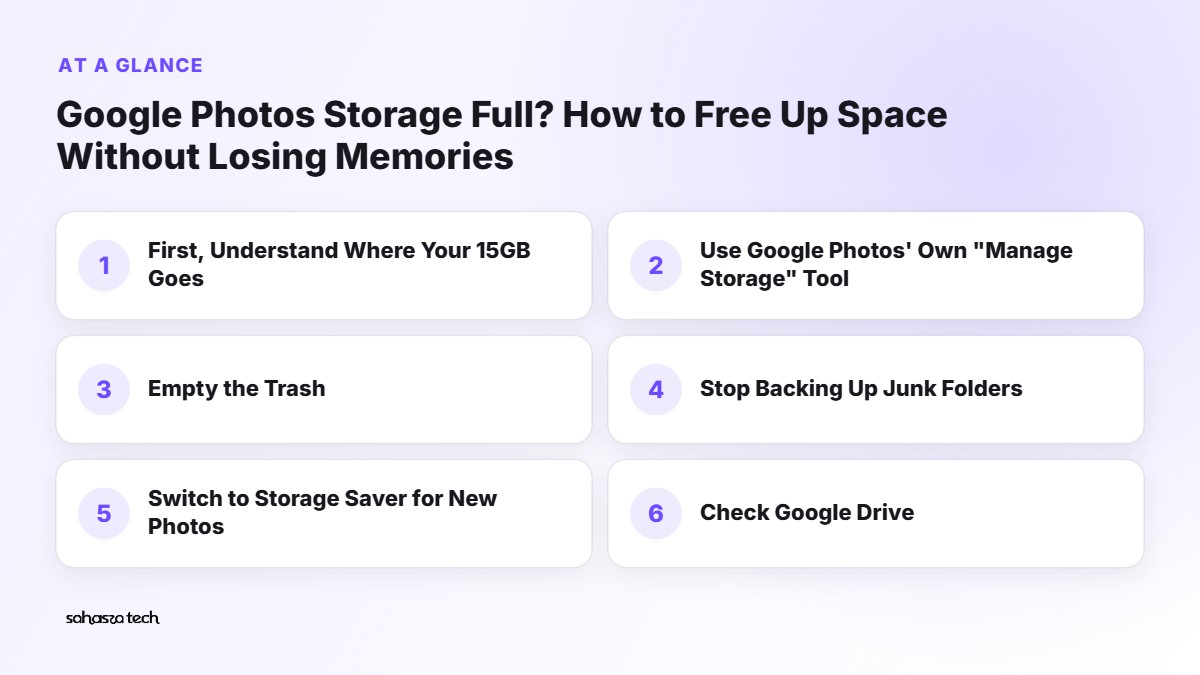
First, Understand Where Your 15GB Goes
A free Google account comes with 15GB of storage. The part that confuses most people: that 15GB is shared between three things:
- Google Photos
- Google Drive (including WhatsApp backups on Android)
- Gmail (yes, emails and attachments count)
So your "Photos is full" problem might actually be a Gmail problem, or a WhatsApp backup problem.
How to check:
- 1. Open the Google One app, or go to one.google.com/storage in a browser.
- 2. You'll see a coloured bar split into Photos, Drive and Gmail.
- 3. Note which one is the biggest. That's where we start.
Step 1: Use Google Photos' Own "Manage Storage" Tool
Google Photos has a cleanup screen built in, and it's better than most people realise.
On the phone:
- 1. Open Google Photos.
- 2. Tap your profile picture (top right) → Photos settings → Backup → Manage storage. (The path shifts a bit between versions; you can also search "Manage storage" in settings.)
- 3. You'll see categories like:
– Large photos and videos – Screenshots – Blurry photos – Photos from other apps (often WhatsApp forwards)
What I clear first:
- Screenshots – OTP screens, train tickets from 2022, payment confirmations. Usually safe to delete in bulk after a quick scroll.
- Large videos – sort by size. A single 4K video can be several GB. Often it's an accidental 10-minute video of your pocket.
- WhatsApp forwards – good morning images, memes, forwarded videos. These pile up silently if your WhatsApp folder is backed up.
Take your time with the "Blurry" section – the tool isn't perfect, and sometimes it marks a slightly soft photo of your grandmother as blurry. Keep those.
Step 2: Empty the Trash (It Still Counts!)
When you delete backed-up photos, they go to Trash (or Bin) and stay there for a while – typically 60 days for backed-up items – before being permanently removed. Until then, depending on how Google counts it, they may still take up space.
Go to Library → Bin/Trash → Empty bin once you're sure you don't need anything there.
One more thing: Archive is not delete. Archiving a photo just hides it from your main view. It still uses storage.
Step 3: Stop Backing Up Junk Folders
On Android, Google Photos can back up "device folders" like WhatsApp Images, Screenshots, Instagram, Telegram and Downloads.
- 1. In Google Photos, go to Library (or Collections) → On this device.
- 2. Open folders like WhatsApp Images or Screenshots.
- 3. Turn Backup off for the ones you don't need in the cloud.
This won't delete anything already backed up – it just stops new junk from piling in.
Step 4: Switch to Storage Saver for New Photos
Google Photos offers two backup qualities:
- Original quality – exactly as your camera shot it.
- Storage saver – slightly compressed. For phone viewing and most prints, I can't really tell the difference.
To switch: Photos settings → Backup → Backup quality → Storage saver.
This affects new backups. Google has also offered a one-time option (on the web, in Photos settings, often called Recover storage) to convert your existing original-quality photos to storage saver. That can free up a lot – but it's permanent. If you're a photographer or you print large photos, think twice, or keep a full-quality copy on a hard disk first.
Step 5: Check Google Drive
If Drive is the big chunk:
- 1. Go to drive.google.com/drive/quota (or in Drive, tap Storage in the menu). This shows your files sorted by size.
- 2. Delete old large files you don't need – old ZIPs, duplicate videos, college project files you've already saved elsewhere.
- 3. Check Backups in the Drive menu. Old phone backups and app data can sit there quietly.
WhatsApp backups: on Android, WhatsApp backs up to your Google account, and these backups now count toward your storage. If yours is huge, open WhatsApp → Settings → Chats → Chat backup and consider turning off Include videos. Also clear large media from chats (Settings → Storage and data → Manage storage) – the next backup will be smaller.
Don't forget to empty Drive's Bin as well.

Step 6: Clean Gmail (The Sneaky One)
Years of email attachments add up. In Gmail's search bar, type:
has:attachment larger:10M
This shows every email with attachments bigger than 10MB. Delete what you don't need. Try larger:5M next.
Also try searching for old promotional emails from shopping sites – category:promotions older_than:1y – and delete them in bulk. Each one is small, but thousands add up. Empty Gmail's Bin afterwards.
Step 7: Use "Free Up Space" on Your Phone (Different Thing!)
This confuses a lot of people, so let me be clear:
- Google account storage = cloud space (the 15GB).
- Phone storage = space on your device.
In Google Photos, the Free up space option (under your profile picture) deletes the phone copies of photos that are already safely backed up. It frees your phone, not your Google storage. Useful, but it won't fix the "Google storage full" banner.
Important: before using it, make sure backup is complete. If you see "Backup complete" or a cloud icon with a tick on your profile picture, you're good.
Step 8: Make an Offline Copy of Your Important Memories
This is the step I wish more people did. Cloud storage is convenient, but having a second copy you control is peace of mind.
- Use Google Takeout (takeout.google.com) to download your Google Photos library as ZIP files.
- Copy it to a laptop and an external hard disk or a large pen drive.
- For huge libraries, select albums or years one at a time.
Once you have a safe copy, you can be more relaxed about deleting old stuff from the cloud – or even moving very old years off Google entirely.
When Paying for More Storage Makes Sense
Sometimes, after all this cleanup, you're still near full – especially if you have kids, shoot lots of video, or share photos with family. That's okay.
Google One plans in India start fairly cheap for the lower tiers, and you can share the storage with family members. Check the current pricing in the Google One app, since it changes and sometimes includes extra features. If you do pay, I'd still keep doing the occasional cleanup and the offline backup.
What Happens If You Ignore the "Storage Full" Warning?
Things stop syncing. New photos won't back up, Drive won't accept new files, and Gmail may not receive new emails. Google's policy also says that accounts over their storage limit for a long period (it's been stated as two years or more) could have content deleted, after warnings. So don't ignore it forever.
My Quick Cleanup Routine
Every few months, I spend 15 minutes on this:
- 1. Check the storage bar in Google One.
- 2. Delete screenshots and large videos in Photos.
- 3. Run
has:attachment larger:10Min Gmail. - 4. Sort Drive by size.
- 5. Empty all three bins.
That's usually enough to stay comfortably under the limit.
FAQ
Will deleting photos from my phone delete them from Google Photos? If backup is on and you delete from inside the Google Photos app, yes – it deletes from both. Use "Free up space" if you only want to remove phone copies.
Does Storage saver ruin photo quality? For most phone viewing, the difference is hard to notice. For large prints or professional editing, keep originals.
Do WhatsApp backups count toward Google storage? Yes, on Android they now count toward your Google account storage.
Is Google Takeout safe? Yes, it's Google's official tool to download your data. Just store the downloaded files somewhere secure.
2 thoughts on “Google Photos Storage Full? How to Free Up Space Without Losing Memories”