

In This Guide Show
iPhone users have it easy here – there’s a “Battery Health” percentage right in Settings. On Android, it’s a bit of a treasure hunt. Some phones show it clearly, some hide it, some don’t show it at all.
But battery health is worth knowing. It tells you whether your phone’s “bad battery life” is a settings problem you can fix, or an ageing battery that needs replacing. Let’s find out where your phone keeps that information, and what habits actually make a difference.
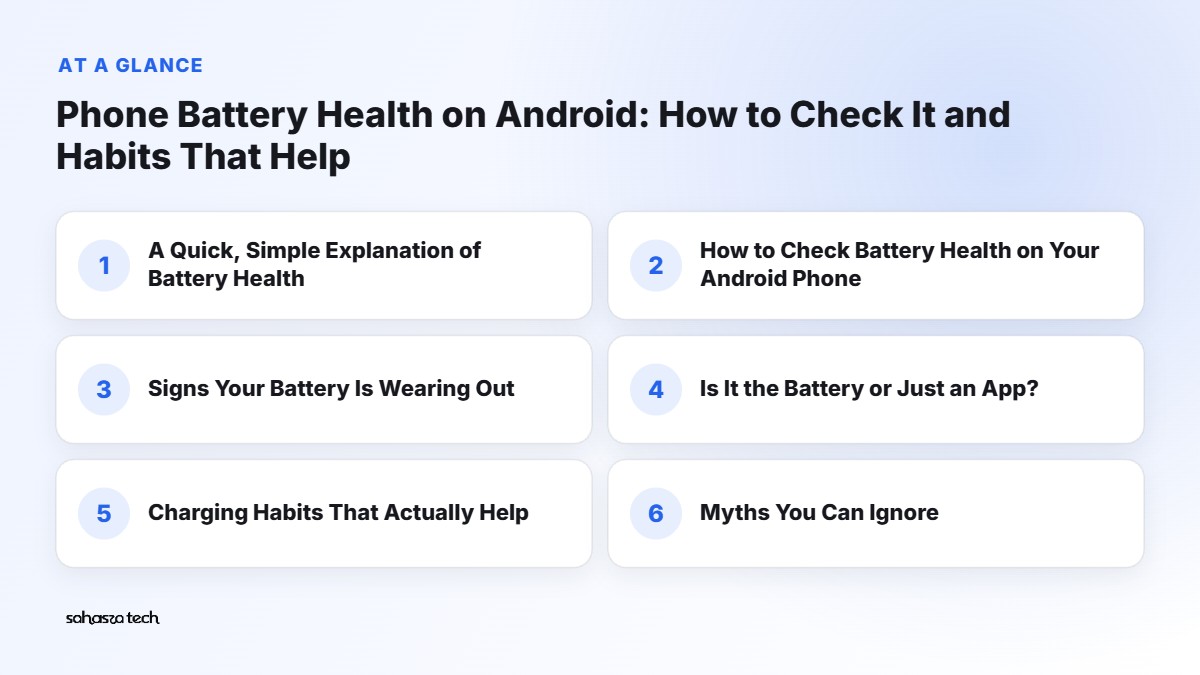
A Quick, Simple Explanation of Battery Health
Your phone has a lithium-ion battery. Every battery slowly loses capacity over time – it can hold less charge than when it was new. That’s normal chemistry, not a defect.
Two things wear it out:
- Charge cycles – roughly, one full 0–100% worth of charging (it can be spread across several top-ups, e.g. two 50% charges ≈ one cycle).
- Heat – this is the big one. Batteries age faster when they’re hot, especially when hot and full.
“Battery health” is usually shown as a percentage of the original capacity, or as simple labels like “Good” or “Normal”.
How to Check Battery Health on Your Android Phone
This depends heavily on your brand and Android version. Here’s what to try – if one doesn’t work, move to the next.
Samsung Galaxy phones
- Install or open the Samsung Members app (often pre-installed).
- Go to Support → Phone diagnostics → Battery status.
- You’ll see “Battery life” as Good, Normal or Weak.
Some newer Samsung models running recent One UI versions may also show more details under Settings → Battery or Settings → About phone → Battery information. Search “battery” in Settings to find it.
Google Pixel phones
On newer Pixels with recent Android versions, look in Settings → Battery → Battery health. Some models also show cycle count and manufacture date under Settings → About phone → Battery information. Older Pixels may not have this.
Xiaomi, Redmi, POCO
There isn’t always a direct health screen. Try:
– Searching “battery” in Settings.
– The Security app → Battery section.
– Some models show battery info in Settings → About phone or My device.
OnePlus, Realme, Oppo, Vivo
Newer models on recent versions of OxygenOS, ColorOS, Realme UI and Funtouch/OriginOS have started showing Battery health under Settings → Battery, sometimes with a “Battery health” or “Maximum capacity” option. If you don’t see it, your model may not support it yet.
The dialer code trick
On some Android phones, dialling *#*#4636#*#* opens a testing menu with battery information. It doesn’t work on every phone, and many brands have disabled it. Don’t change any settings inside that menu if you’re not sure what they do.
Using an app (an estimate)
If your phone shows nothing, apps like AccuBattery can estimate battery health. You install it, use your phone and charge normally for a week or so, and it calculates the approximate capacity from how much charge goes in.
Two honest caveats: it’s an estimate, not a precise measurement, and it needs several charging sessions to become meaningful.
Signs Your Battery Is Wearing Out (Even Without a Number)
You don’t always need a percentage. These signs are pretty clear:
- Sudden shutdowns at 15–20% or during heavy use like the camera.
- Big percentage jumps – 40% drops to 20% within a few minutes.
- The phone gets warm while doing very little.
- Battery life is much worse than it used to be with the same apps and habits.
- The back panel or screen is lifting, or the phone looks slightly bulged. ⚠️ This is a swollen battery. Stop charging it and get it checked at a service centre soon. Don’t press on it or try to open it.
Is It the Battery or Just an App?
Before blaming the battery, rule out the easy stuff:
- Go to Settings → Battery → Battery usage.
- Look for apps using a lot of battery that you don’t use much.
- Check screen brightness, refresh rate (120Hz uses more than 60Hz), and whether location or Bluetooth is always on.
- Weak mobile signal drains battery too – common in basements and inner rooms.
If a single app is draining things, fix that first. If everything looks normal and battery life is still poor, ageing is the likely cause.
Charging Habits That Actually Help
There’s a lot of folklore about phone charging. Here’s what’s actually worth doing, in order of importance.
1. Avoid heat (the most important one)
- Don’t charge under your pillow or on a soft bed.
- Remove thick cases while fast-charging if the phone gets hot.
- Don’t leave the phone on a car dashboard or in direct sun. Summer afternoons in a parked car are brutal on batteries.
- Avoid heavy gaming while fast-charging.
2. Use the phone’s built-in battery protection
Most brands now have a feature to reduce wear:
– Samsung: Settings → Battery → Battery protection (options like stopping at 80%/85% or adaptive).
– Pixel: Adaptive charging / charging optimization, which can slow charging overnight or limit to 80%.
– OnePlus/Oppo/Realme: look for Optimised charging or Smart charging under Battery settings.
– Xiaomi: look for Smart charging or Optimised charging under battery settings, depending on model.
If you mostly charge overnight, turn this on. It’s the easiest win.
3. Don’t stress about the “20–80%” rule
Keeping your battery between roughly 20% and 80% does reduce wear compared to constantly going 0–100%. But don’t let it control your life. If you need 100% for a long day, charge to 100%. The bigger enemies are heat and leaving it at 100% for long hours in the heat.
4. Avoid running it to 0% regularly
Occasional deep drains are fine. Doing it daily adds unnecessary stress.
5. Use a decent charger and cable
You don’t have to use only the original charger, but use a good-quality one from a known brand that matches your phone’s charging standard. Very cheap, unbranded chargers from roadside shops are a real risk – both for the battery and for safety. For chargers, the BIS (ISI) certification mark on the product is a good sign.
6. Fast charging is fine
Modern phones manage fast charging safely, and they slow down near the top. Heat is the issue, not speed itself. If the phone gets very hot during fast charging, remove the case.
Myths You Can Ignore
- “Charge it to 100% before first use.” Not needed for modern batteries.
- “Charging overnight will damage it.” Phones stop charging when full. With optimised charging on, it’s even less of a concern.
- “Closing all apps saves battery.” Usually not – reopening them costs more.
- “Battery saver apps from the Play Store help.” Mostly they don’t. Android’s own battery saver mode is enough.
When to Replace the Battery
If your phone is otherwise fine – still getting updates, enough storage, decent performance – a battery replacement can give it another year or two of life. It’s often much cheaper than a new phone.
Tips:
- Go to an authorised service centre when possible. Ask for a quote before agreeing.
- Many modern phones have glued-in batteries. Replacement involves opening the phone, which can affect water resistance.
- Third-party shops are cheaper but quality varies a lot. A poor-quality replacement battery can be a safety risk.
- Back up your phone before handing it over.
If your phone is old and has stopped getting security updates, it might be time to put that money toward a new phone instead.
My Simple Battery Routine
- Turn on the phone’s battery protection / optimised charging.
- Keep it out of the heat, especially while charging.
- Check Battery usage once a month for apps behaving badly.
- Use a decent BIS-certified charger.
- Check battery health (if your phone shows it) every few months.
That’s it. No complicated rules.
FAQ
What is good battery health on Android?
If your phone shows a percentage, around 80% or above is generally considered fine. Labels like “Good” or “Normal” also mean it’s okay.
Does fast charging reduce battery life?
It can add some heat, and heat is what ages batteries. Modern phones manage this well; remove the case if it gets very hot.
Is AccuBattery accurate?
It gives an estimate based on your charging sessions. Useful as a rough guide, not an exact measurement.
Can I keep using a swollen battery?
No. Stop charging it and take it to a service centre. Swollen batteries can be a fire risk.
1 thought on “Phone Battery Health on Android: How to Check It and Habits That Help”