
In This Guide Show
A few years ago, I got stopped at a traffic check near Gachibowli. My licence was at home in another wallet. Mild panic. Then I remembered I had DigiLocker on my phone, opened it, showed the licence, and that was the end of it.
That moment sold me on DigiLocker. It’s one of those genuinely useful government apps that many people have heard of but never set up. So let’s go through what it is, what it’s good for, and how to set it up without falling for the fake versions floating around.
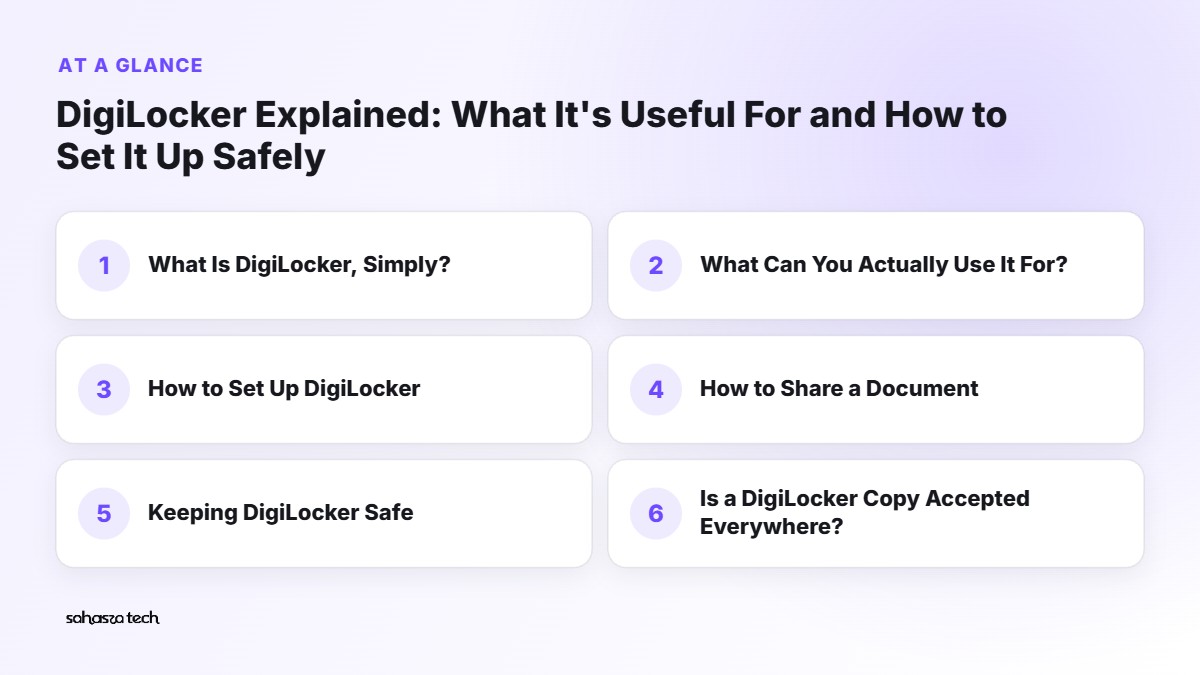
What Is DigiLocker, Simply?
DigiLocker is the Government of India’s official digital document wallet, run under the Ministry of Electronics and Information Technology (MeitY). You can access it through the DigiLocker app (Android and iPhone) or at digilocker.gov.in.
It does two different things, and the difference matters:
- Issued documents – documents pulled directly from the department that issued them. For example, your driving licence from the transport department, your CBSE marksheet from CBSE, your PAN from the Income Tax Department.
- Uploaded documents – scans or photos you upload yourself, like a rent agreement or an old certificate.
Issued documents are the valuable ones. Under India’s IT rules, issued documents in DigiLocker are treated as equivalent to the original physical documents. Uploaded documents are just your own copies – handy for storage, but not officially verified.
What Can You Actually Use It For?
Here’s where I’ve found it most useful:
- Driving licence and vehicle RC – for traffic checks. Show the issued version in DigiLocker (or mParivahan).
- Class 10 and 12 marksheets – from CBSE and many state boards. Super useful for college and job applications.
- University degrees – some universities issue them digitally, often through the National Academic Depository (NAD) linked with DigiLocker.
- PAN card – an issued digital PAN.
- Aadhaar – a digital copy linked from UIDAI.
- Vehicle insurance and some health insurance policies from participating insurers.
- Various state certificates – caste, income, birth certificates in some states, depending on what your state has connected.
Availability depends on which departments and states have joined, so your list may look different from someone in another state.
How to Set Up DigiLocker (Step by Step)
Step 1: Download the real app
On the Play Store or App Store, search DigiLocker. Check the developer – it should be the National eGovernance Division (or similar official government listing), with a very large number of downloads. Don’t install look-alike apps with names like “DigiLocker Document Saver” or “Digi Locker Pro”.
Or simply use digilocker.gov.in in your browser.
Step 2: Sign up
- Tap Get Started → Create account (or Sign up).
- Enter your name as per Aadhaar, date of birth, gender, mobile number, and email (optional but recommended).
- You’ll get an OTP on your mobile. Enter it.
- Set a 6-digit security PIN. This is what you’ll use to log in. Don’t use your birth year or 123456.
- Link your Aadhaar when asked. You’ll get another OTP on your Aadhaar-linked mobile number.
Tip: it’s easiest if the mobile number you sign up with is the one linked to your Aadhaar.
Step 3: Fetch your issued documents
- Go to Search or Issued Documents → Get more (labels change slightly between app versions).
- Search for the issuing body – for example, “Ministry of Road Transport” for your driving licence, “CBSE” for marksheets, “Income Tax” for PAN.
- Enter the requested details (licence number, roll number and year, etc.).
- The document appears in your Issued section.
If details don’t match – for example, your name is spelled differently on your licence and Aadhaar – the fetch may fail. In that case, the fix usually has to happen with the issuing department, not DigiLocker.
Step 4: Upload personal documents (optional)
In the Uploads or Drive section, you can upload PDFs or images. There’s a storage limit for uploads, so keep it to important stuff. Remember, these aren’t “verified” copies.
How to Share a Document
Instead of WhatsApping a photo of your marksheet to random people, you can share from DigiLocker:
- Open the document.
- Tap Share – some options let you share as a link or a PDF.
- Where available, use time-limited sharing so the link stops working after a while.
Many organisations – banks, employers, colleges – can also request documents directly through DigiLocker with your consent. That’s safer than emailing copies around.

Keeping DigiLocker Safe
DigiLocker itself is a well-built official platform. The risks come mostly from people – scammers and our own habits.
1. Never share your DigiLocker PIN or OTP
No genuine official will ask for your DigiLocker PIN or OTP over a call or WhatsApp. If someone calls claiming to be from DigiLocker, a bank, or “KYC verification” and asks for these – hang up.
2. Beware of fake websites
Always type digilocker.gov.in yourself. Watch for look-alike domains with extra words or different endings. Government sites end with .gov.in.
3. Lock your phone
Since DigiLocker has your identity documents, keep a strong screen lock on your phone. Many people also use the phone’s app lock feature for it.
4. Check your activity
DigiLocker has an Activity or Account activity section showing logins and document access. Look at it occasionally. If you see something you don’t recognise, change your PIN.
5. Be careful with Aadhaar copies
When sharing Aadhaar, consider using a masked Aadhaar (which shows only the last four digits) where full details aren’t required. You can download a masked version from UIDAI’s website.
6. Update your app
Keep the app updated from the official store for security fixes.
Is a DigiLocker Copy Accepted Everywhere?
Mostly, issued documents are widely accepted – traffic police (for DL and RC), many colleges, government departments, banks, and employers.
That said, some offices and private organisations still ask for physical copies or attested photocopies, out of habit or their own rules. Don’t throw away your originals. DigiLocker is a backup and convenience tool, not a replacement for keeping your originals safe.
Also: airports have a separate system called DigiYatra for boarding. Airlines and security may accept DigiLocker ID documents in some cases, but rules can change – check with your airline before relying on it.
Common Problems and Fixes
“Aadhaar OTP not coming.”
Your Aadhaar may be linked to an old number. You’ll need to update it at an Aadhaar Seva Kendra or enrolment centre.
“Document not found.”
Double-check the number format (DL numbers in particular have specific formats). If it still fails, the issuing department may not have your record digitised yet.
“Name mismatch.”
DigiLocker matches against Aadhaar. If your documents have different spellings, the correction needs to happen at the source.
“Forgot my PIN.”
Use the Forgot PIN option on the login screen. You’ll verify with OTP and set a new one.
Why I Think Everyone Should Set It Up
It takes about 15 minutes. After that, you always have your licence, RC, marksheets and PAN with you – without carrying the papers or hunting through old folders before a job interview.
For students and young professionals especially, having your marksheets in DigiLocker saves a lot of running around during admissions and job applications.
FAQ
Is DigiLocker safe?
It’s an official government platform with security measures in place. Most risks come from scams – never share your PIN or OTP and only use the official app or website.
Are DigiLocker documents legally valid?
Issued documents (pulled from the issuing authority) are treated as equivalent to originals under Indian IT rules. Self-uploaded documents are just personal copies.
Can I show my driving licence on DigiLocker to traffic police?
Yes, the issued DL in DigiLocker or mParivahan is meant for this. A photo or scan of your licence is not the same thing.
Is DigiLocker free?
Yes, it’s free to use.
1 thought on “DigiLocker Explained: What It’s Useful For and How to Set It Up Safely”