
In This Guide Show
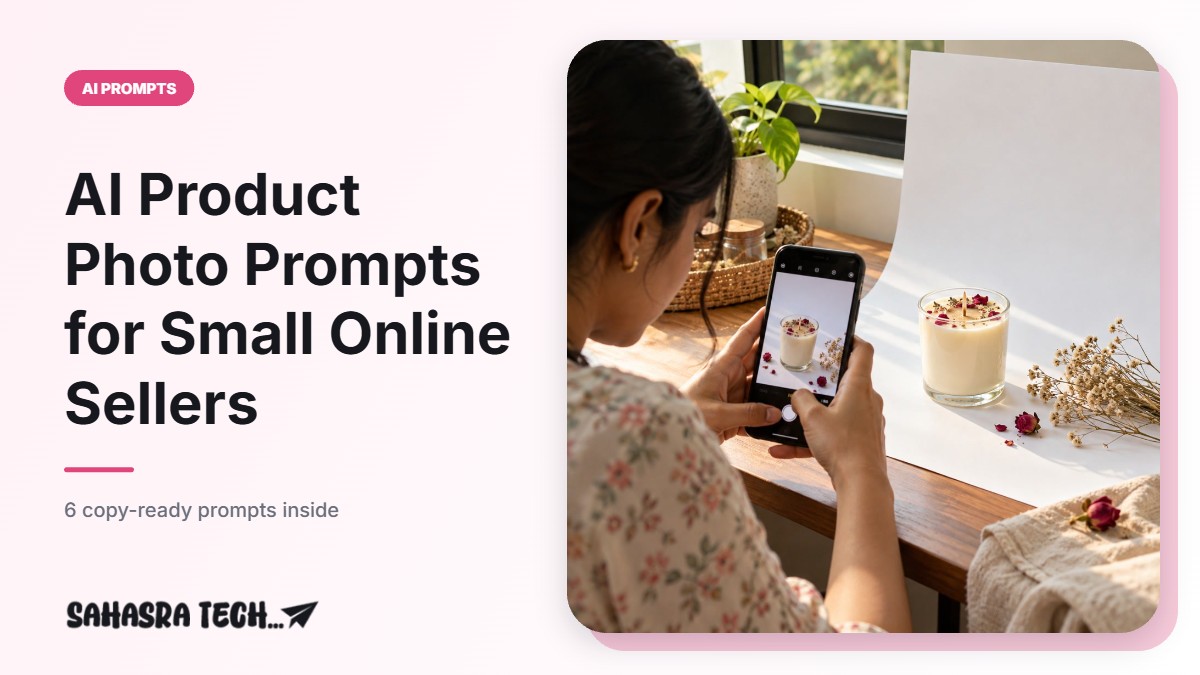
If you sell from home through WhatsApp, Instagram or an online marketplace, you can improve your product pictures without a studio: take one clear photo on your phone, upload it to Gemini or ChatGPT, and use a prompt that changes only the background, lighting and setting while the product itself stays exactly as it is. Below are six copy-ready prompts for the most common needs, with what to change and the mistakes to avoid.
First, Take a Usable Source Photo
The AI can only work with what it sees. A few minutes spent here saves many retries.
- Place the product near a window in daylight. Avoid tube-light glare and flash.
- Use a plain surface and background: a white chart paper, bedsheet or wall is enough.
- Clean the product and the phone lens.
- Shoot from the angle a buyer would want: front for packaged items, slightly above for food, flat from the top for clothes and jewellery.
- Keep the full product in the frame with a little space around it.
Prompt 1: Clean White Background
Use the attached product photo. Keep the product exactly the same: same shape, colour, label, text and proportions. Do not redraw or redesign it.
Remove the current background and place the product on a pure white background with a soft natural shadow under it.
Even, soft lighting. Product centred, filling about 80 percent of a square 1:1 frame. Photorealistic. No extra objects, no text, no watermark.
How to use it: this is the standard catalogue look, and many marketplaces ask for a plain white background on the main image. Check the image rules of the platform you sell on before uploading.
Prompt 2: Lifestyle Scene
Use the attached product photo. Do not change the product: keep its exact shape, colour, label and size.
Place it in a realistic lifestyle setting: [on a wooden kitchen counter with a few fresh ingredients in the background, softly blurred].
Warm natural daylight from the side. Product in sharp focus in the centre. Square 1:1, photorealistic, no people, no text, no logo other than what is already on the product.
What to change: the setting in brackets. Examples: “on a dressing table beside a mirror” for cosmetics, “on a study desk with notebooks” for stationery, “on a sofa with cushions” for home decor.
Prompt 3: Festive Theme
Use the attached product photo. Keep the product exactly as it is.
Create a festive [Diwali] themed product photo: place the product on a dark wooden surface with a few lit diyas, marigold flowers and soft warm bokeh lights in the background.
The product must remain the brightest, sharpest part of the image. Square 1:1, photorealistic, no text, no watermark.
What to change: the festival and props, for example rangoli colours for Sankranti, rakhis for Raksha Bandhan or gift boxes for a wedding season offer. For portrait-style festive pictures, see our Diwali AI photo prompts.
Prompt 4: Flat Lay for Clothes and Accessories
Use the attached photo of [a folded cotton kurta]. Keep the exact fabric colour, print and embroidery. Do not change the design.
Create a neat top-down flat lay on a [light beige fabric] background. Add two or three small matching props at the edges, such as [a pair of juttis and a small plant], without covering the product.
Soft even daylight, no harsh shadows. Square 1:1, photorealistic, no text.
How to use it: after the image is made, compare the colour with the real item. If the shade has shifted, reply “the colour is wrong, match the fabric colour in my original photo exactly”.
Prompt 5: Food Product Close-Up
Use the attached photo of [a jar of homemade mango pickle]. Keep the jar, lid and label exactly the same.
Place it on a rustic wooden table with a small bowl of the same pickle and a few raw ingredients beside it. Shallow depth of field, soft daylight from a window.
Do not change how the food inside the jar looks. Square 1:1, photorealistic, no text other than the existing label.
Important for food sellers: the picture must show the product a customer will actually receive. Do not let the AI add ingredients, garnish or quantity that is not in your product.
Prompt 6: Same Photo in Different Sizes
Take the last image and give me two more versions with the same product and style:
1. A vertical 4:5 version for an Instagram post.
2. A vertical 9:16 version for WhatsApp Status and Instagram Stories, with empty space at the top for me to add text later.
Do not change the product.
How to use it: send this in the same chat right after a result you like. Add your price and offer text later in a photo editor, because AI tools often misspell words placed inside images. For the caption, use our Instagram caption prompts.
Which Tool Works for These Prompts?
- Gemini app: attach the photo with the plus button, paste the prompt and send. Images created in the Gemini app carry Google’s AI watermark.
- ChatGPT: attach the photo in a chat, paste the prompt and send. Free accounts have a daily limit on images.
Limits and features on free plans change, so check what your account shows. If a tool keeps altering the label or logo, try the same prompt in the other one. New to these tools? Start with our free AI image tools guide for beginners.
Common Mistakes to Avoid
- Letting the AI redesign the product. Check the label text, logo, colour and shape against the original every time. Garbled letters on a label are common.
- Making the product look bigger or better than it is. Customers compare the delivery with the photo. Misleading pictures bring returns, bad reviews and complaints.
- Too many props. The buyer should understand in one second what is being sold.
- Using only AI images. Add at least one or two plain, unedited photos in your listing so buyers can see the real item, and mention the actual size or weight in the description.
- Ignoring platform rules. Marketplaces have their own image guidelines on background, text and watermarks. Read them once before you bulk-edit your catalogue.
FAQ
Can I make product photos with AI for free?
Yes. The Gemini app and ChatGPT both let you upload a product photo and edit it with a prompt on free accounts, within daily limits that change over time.
Will the AI change my product label or logo?
It can. Small text and logos are often redrawn incorrectly. Always compare the result with your original photo and regenerate, or ask the tool to keep the label exactly the same, if anything has changed.
Can I use AI-edited photos on online marketplaces?
Each platform has its own image rules, for example on backgrounds, added text and watermarks. Read the image guidelines of the platform you sell on, and make sure the photo shows the product accurately.
What kind of source photo gives the best result?
A sharp photo taken in daylight on a plain background, with the whole product visible, no flash glare and a clean lens.