
In This Guide Show
You do not need a separate scanner app to turn paper into a PDF. The Google Drive app that comes on most Android phones has a built-in scanner: open Drive, tap the camera (Scan) button, point the phone at the page, adjust the crop and save. The PDF is stored in your Google Drive, where you can rename, share or download it. The same Scan option is available in the Drive app on iPhone.
What You Need
- The Google Drive app, updated from the Play Store or App Store.
- A Google account signed in to the app.
- Some free space in your Google storage. Scans are small, but they do count towards your account storage.
- Good light and a flat surface.
How to Scan a Document With Google Drive on Android
- Open the Google Drive app.
- Tap the camera icon near the bottom right, above the New (+) button. On some versions you tap New (+) first and then choose Scan.
- Allow camera permission if the app asks for it.
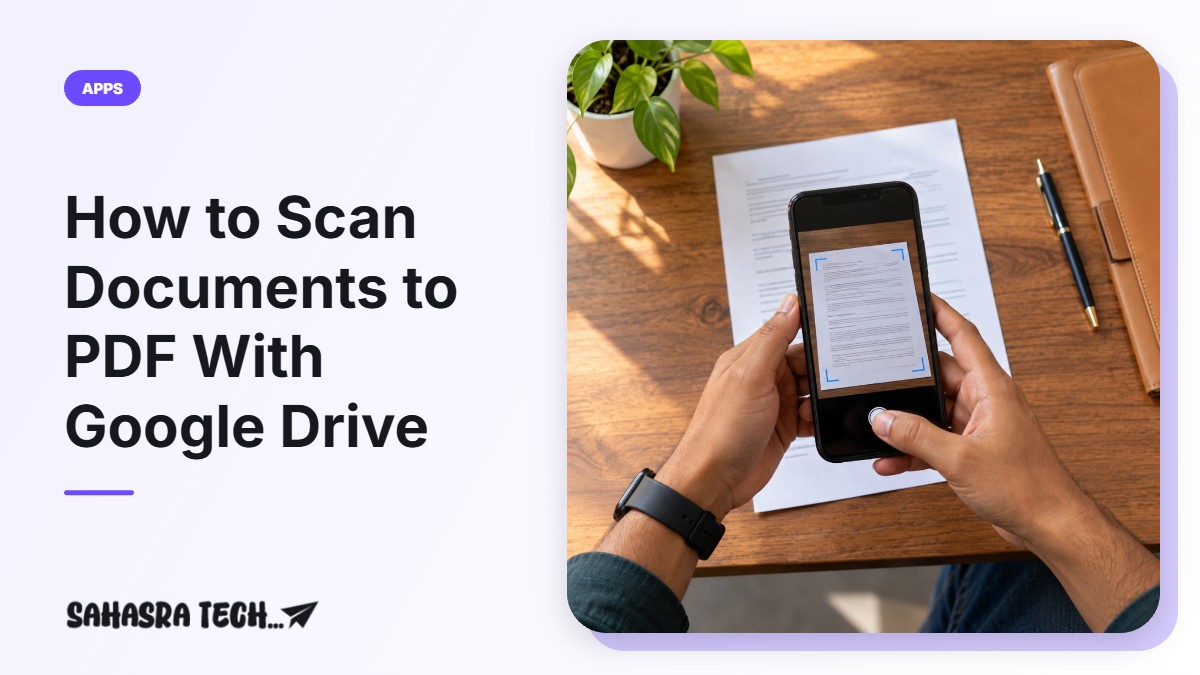
- Hold the phone above the document. The app marks the edges of the page. With automatic capture on, it takes the picture by itself when the page is steady; you can also switch to manual and press the shutter button.
- Check the preview. Use Crop to drag the corners if the edges are off, and the filter option to switch between colour, greyscale and black and white.
- To add more pages to the same PDF, tap the add page (+) button and capture the next page. Repeat for every page.
- Tap Done, type a file name, choose the Drive folder and tap Save.
Button names and positions differ slightly between phones and app versions, but the order is always the same: scan, adjust, add pages, save.
How to Scan on iPhone
Open the Google Drive app on the iPhone, tap the camera button at the bottom right (or the + button and then Scan), capture the page, adjust it and save it to Drive. If you do not use Drive, the iPhone’s own Files and Notes apps also include a document scanner.
Tips for a Clear, Readable Scan
- Use daylight. Stand near a window so that your hand and phone do not throw a shadow on the page. Avoid flash on glossy paper and laminated cards.
- Use a dark, plain background under white paper. The contrast helps the app find the edges.
- Flatten the page. Press out folds, and hold curled corners down with a pen or coin outside the text area.
- Hold the phone parallel to the page and fill the frame with it.
- Clean the lens. A fingerprint on the camera glass is the most common reason for hazy scans.
- Pick the right filter. Black and white suits printed text and keeps the file small. Use colour for certificates, photos and documents with stamps or coloured seals.
How to Rename, Share or Download the PDF
- Find it: open Drive and look under Recent, or search for the file name.
- Rename: tap the three dots next to the file and choose Rename. Use clear names such as “Electricity-Bill-Sep-2026” so you can search later.
- Share: tap the three dots and choose Send a copy to attach the actual PDF in WhatsApp, Gmail or another app. Choosing Share instead gives the other person a link to the file in your Drive.
- Download: tap the three dots and choose Download to keep a copy in your phone storage for uploading to websites.
Add a Scan Shortcut to Your Home Screen
If you scan often, add the Drive scan shortcut on Android: touch and hold an empty area of the home screen, tap Widgets, find Drive and drag the Drive scan widget to the home screen. Pick the folder where scans should be saved. After that, one tap opens the scanner directly. The widget list looks different on each phone brand.
If the File Is Too Large for an Upload Form
Many application portals accept only small PDFs and mention a size limit in KB or MB. Drive does not have a compress button, so reduce the size at the time of scanning:
- Use the black and white or greyscale filter instead of colour.
- Scan only the pages that are asked for.
- Crop tightly so that the table or floor around the page is not included.
If the file is still above the limit, check whether the portal accepts a JPG image of the page instead.
Is It Safe to Scan ID Documents Into Drive?
Your scans are private to your Google account unless you share them. Keep them that way:
- Turn on 2-Step Verification for your Google account and use a strong password. Our guide to strong passwords and password managers explains how.
- When you share a link, give access only to specific people rather than “anyone with the link”, and remove access when the work is done.
- Do not scan on a borrowed phone that is signed in to someone else’s account.
- For government-issued documents such as driving licence, vehicle RC and mark sheets, the digital copies in DigiLocker are issued directly by the department. See our DigiLocker guide for when to use those instead of a scan.
Running Out of Google Storage?
Every Google account comes with 15 GB of free storage shared between Drive, Gmail and Google Photos. A scanned PDF takes very little, but if the account is already full, the scan will not save. Our guide on freeing up Google storage shows what to delete first.
Other Free Ways to Scan on Your Phone
- Files by Google: recent versions of the Files app on Android also have a Scan button that saves a PDF to phone storage, which is useful when you do not want the file in the cloud.
- Your phone’s camera or gallery app: some phones from Samsung, Xiaomi and others offer a document mode that straightens the page. The result is usually a photo, not a PDF.
To copy text out of a paper page instead of saving it as a PDF, Google Lens is the quicker tool; see our Google Lens tricks guide.
FAQ
Is the Google Drive scanner free?
Yes. Scanning is a built-in feature of the Google Drive app and does not need a subscription. The scanned PDFs use a small amount of your Google account storage.
Where is the Scan button in Google Drive?
On Android it is the camera icon near the bottom right of the Drive app, above the New (+) button. On some versions you tap New (+) and then Scan. The position can differ slightly by app version.
Can I scan several pages into one PDF?
Yes. After capturing the first page, tap the add page button and capture the next page. All pages are saved together in a single PDF when you tap Done and Save.
How do I send the scanned PDF on WhatsApp?
In Drive, tap the three dots next to the file and choose Send a copy, then pick WhatsApp. This sends the actual PDF file rather than a link.
Does Google Drive scanning work without internet?
You can capture the scan offline, but the file uploads to Drive only when the phone is back online. If you need the PDF only on the phone, the Files by Google scanner saves it to phone storage.