

In This Guide Show
Every few months a friend hands me their phone and says, "Bro, it's become so slow." Sometimes they're right. Other times the phone is fine and it's one bad app, a full storage bar, or a phone that's been cooking in a jeans pocket on a Hyderabad afternoon.
So before you start pricing new phones on Flipkart, let's figure out what's actually going on. Most of these checks take five minutes and need no extra apps.
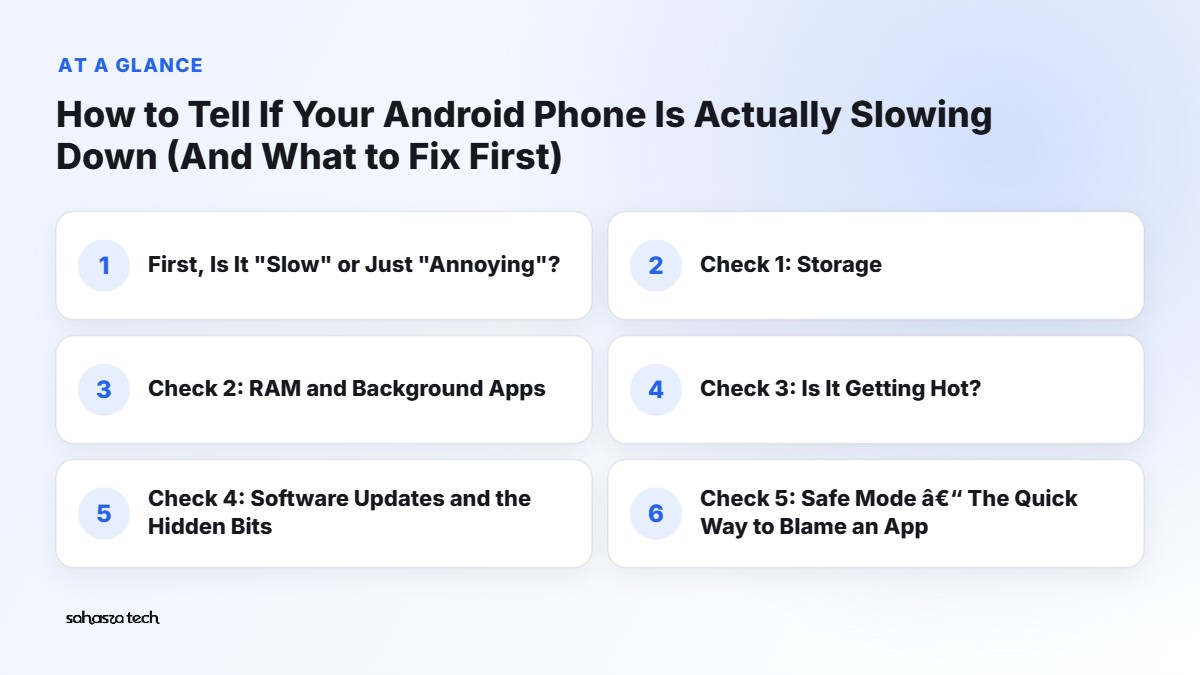
First, Is It "Slow" or Just "Annoying"?
This sounds silly, but it matters. "Slow" can mean very different things:
- Apps take forever to open – often storage or RAM pressure.
- Scrolling stutters in Instagram or Chrome – could be heat, a heavy app, or an old WebView.
- Typing lags – usually the keyboard app itself, or the phone being nearly full.
- Everything is fine, then suddenly sluggish – classic thermal throttling.
- The battery drains fast and the phone feels warm – something is running in the background.
Spend a day noticing when it feels slow. Write it down if you want. That one habit will save you from fixing the wrong thing.
Check 1: Storage (The Most Common Culprit)
On a lot of mid-range phones in India – think 64GB or 128GB Redmi, Realme, Samsung M-series – storage fills up quietly. WhatsApp media alone can eat 15–20GB on a phone that's in a few busy family groups (that's a rough example, not a statistic, but check yours, you'll be surprised).
Phone storage gets slower when it's nearly full. The system has less room to shuffle files around, app updates fail, and caches can't grow.
How to check:
- 1. Open Settings → Storage (on Samsung it's under Battery and device care → Storage).
- 2. Look at how much is free. My personal rule of thumb is to keep at least 10–15% free. It's not a magic number, just what I've seen work.
- 3. Tap through the categories – Images, Videos, Apps, "Other". See what's big.
What to fix first:
- Open WhatsApp → Settings → Storage and data → Manage storage. You'll see "Larger than 5 MB" and a list of chats sorted by size. Clear the forwarded videos you'll never watch again.
- Turn off auto-download for media on mobile data in the same menu. This alone stops the slow creep.
- In the Files by Google app, the "Clean" tab shows junk files, duplicate memes, and old downloads.
- Back up photos to Google Photos (or your laptop), then use "Free up space" carefully. Make sure the backup actually finished before deleting anything.
If your phone was 95% full and you bring it down to 80%, you'll often feel the difference the same day.
Check 2: RAM and Background Apps
RAM is the short-term memory of your phone. When it's tight, Android closes apps in the background, so when you switch back, they reload from scratch. That "why is Instagram restarting again" feeling? That's RAM pressure.
Note: a lot of phones now advertise "virtual RAM" or "RAM expansion" (8GB + 8GB, etc.). That extra bit is just storage pretending to be RAM. It's slower than real RAM. On some phones, turning it off actually feels snappier, especially if storage is already full. Try both and see.
How to check what's running:
- 1. Enable Developer options: go to Settings → About phone and tap Build number seven times. (On Xiaomi it's MIUI/HyperOS version.) You'll see a "You are now a developer" toast.
- 2. Go to Settings → System → Developer options → Running services (the path differs a little by brand – search "Running services" in Settings if you can't find it).
- 3. You'll see a RAM bar and a list of apps using memory right now.
Don't panic if you see lots of apps. Android is supposed to use RAM. What you're looking for is an app you don't recognise or don't use, sitting there eating hundreds of MB.
Battery usage is a better clue:
Go to Settings → Battery → Battery usage. If an app you barely opened is near the top, it's working in the background. Common offenders I've seen: old shopping apps, some "cleaner" or "booster" apps (ironic, I know), and pre-installed apps you never asked for.
What to fix:
- Uninstall apps you haven't opened in a month. Be honest with yourself.
- For pre-installed apps you can't uninstall, tap Disable if the option is there.
- Delete "RAM booster" and "phone cleaner" apps. Android manages memory itself; these mostly just add ads and background activity.
- On Xiaomi/Redmi phones, the lock screen wallpaper carousel and some "recommendations" settings run in the background too. Turning them off doesn't hurt.
Check 3: Is It Getting Hot? (Thermal Throttling)
This one confuses people the most. Phones protect themselves from heat by slowing down the processor. It's called thermal throttling, and it's normal behaviour, not a defect.
So if your phone is smooth in the morning but laggy after 20 minutes of BGMI, Google Maps navigation on a bike mount, or charging while watching YouTube – heat is probably the reason.
Signs:
- The back or the area near the camera feels warm to hot.
- Screen brightness drops by itself.
- Games drop frames after a while, but are fine when you start.
- Sometimes you get a "Phone is overheating" warning.
What to try:
- Take off thick cases while gaming or charging. Cases trap heat.
- Don't use the phone heavily while it's fast-charging.
- Avoid leaving it on the car dashboard or in direct sun. Seriously, a parked car in May is not a phone-friendly place.
- Lower the game graphics settings. Most mid-range chips can't hold max settings for long anyway.
If the phone gets hot while doing nothing – just sitting on the table – then something is running in the background (go back to the battery check) or, less often, the battery itself is ageing.
Check 4: Software Updates and the Hidden Bits
Two things people forget:
- 1. System updates. Go to Settings → Software update (or System → System update). Updates sometimes fix lag bugs. Sometimes they introduce them too, honestly – but staying on a very old version usually isn't better.
- 2. Google Play system updates and Android System WebView. Open the Play Store, search "Android System WebView" and "Chrome", and update them. A lot of apps use WebView to show content, so an old one can make several apps feel slow at once.
Also, in the Play Store, tap your profile picture → Manage apps & device → Updates available. Update everything, especially your keyboard (Gboard, SwiftKey) if typing feels laggy.
Check 5: Safe Mode – The Quick Way to Blame (or Clear) an App
Safe mode starts the phone with only the pre-installed apps. If the phone is suddenly smooth in safe mode, a third-party app is the problem.
How to do it on most phones:
- 1. Press and hold the power button (on some phones, power + volume up) until the power menu appears.
- 2. Long-press Power off until you see "Reboot to safe mode".
- 3. Tap OK. You'll see "Safe mode" written in the corner.
Use it for 10–15 minutes. If it's noticeably better, restart normally and uninstall recently installed apps one by one until the lag goes away. Tedious, yes. But it works.
When a Factory Reset Makes Sense
A reset clears years of leftover files, broken settings, and app junk. On phones that are two or three years old, it can genuinely make them feel new-ish again.
Consider it if:
- You've cleared storage and removed apps, and it's still slow.
- The phone is slow even in safe mode.
- You've had weird bugs since a major update.
Before you reset:
- Back up WhatsApp: Settings → Chats → Chat backup → Back up. Wait for it to finish.
- Check Google Photos has finished backing up.
- Note down your 2FA apps (Google Authenticator etc.) and move them first. People lose access to accounts this way. Don't be that person.
- Make sure you know your Google account password. After a reset, the phone will ask for it.
Then go to Settings → System → Reset options → Erase all data (brand menus vary). After setup, don't restore every old app at once. Install only what you actually use.
When It's Time to Upgrade Instead
Sometimes the honest answer is: the phone is old. Signs that cleaning won't fix it:
- Battery health is poor. If it dies by afternoon even with light use, or shuts down at 20%, the battery has aged. A battery replacement at an authorised service centre can be cheaper than a new phone – worth asking for a quote first.
- No more software updates. If your phone stopped getting security updates, that's a safety issue, not just speed.
- Storage is just too small. A 32GB phone in 2026 is a constant fight.
- The apps you need have grown heavier. UPI apps, banking apps, and social media keep getting bigger. An entry-level chip from four years ago can struggle.
If you do upgrade, I'd prioritise (in this order) enough storage (128GB minimum, ideally more), a decent chip, and a brand with a clear update policy – over fancy camera megapixel numbers.
My "Fix First" Order
If you only have 15 minutes, do it in this order:
- 1. Free up storage (WhatsApp media, old videos).
- 2. Uninstall unused apps and any "cleaner/booster" apps.
- 3. Update apps, Chrome, and WebView.
- 4. Restart the phone (yes, really – many people haven't restarted in weeks).
- 5. Watch for heat, and remove the case while charging or gaming.
Then live with it for a day or two. If it's still slow, try safe mode, and only then think about a reset.
Quick FAQ
Do I need a third-party app to check phone speed? Not really. Settings has storage, battery, and running services built in. Benchmark apps exist, but they tell you more about the chip than about why your phone feels slow.
Does closing all apps from the recent apps screen help? Mostly no. Android will reopen many of them, which costs battery. Close an app only if it's misbehaving.
Is fast charging making my phone slower? Not slower directly, but it creates heat, and heat causes throttling while you use it. Long term, heat also ages the battery.
How often should I restart my phone? Once a week is a reasonable habit. Some phones even have a scheduled restart option in settings.
2 thoughts on “How to Tell If Your Android Phone Is Actually Slowing Down (And What to Fix First)”