
In This Guide Show
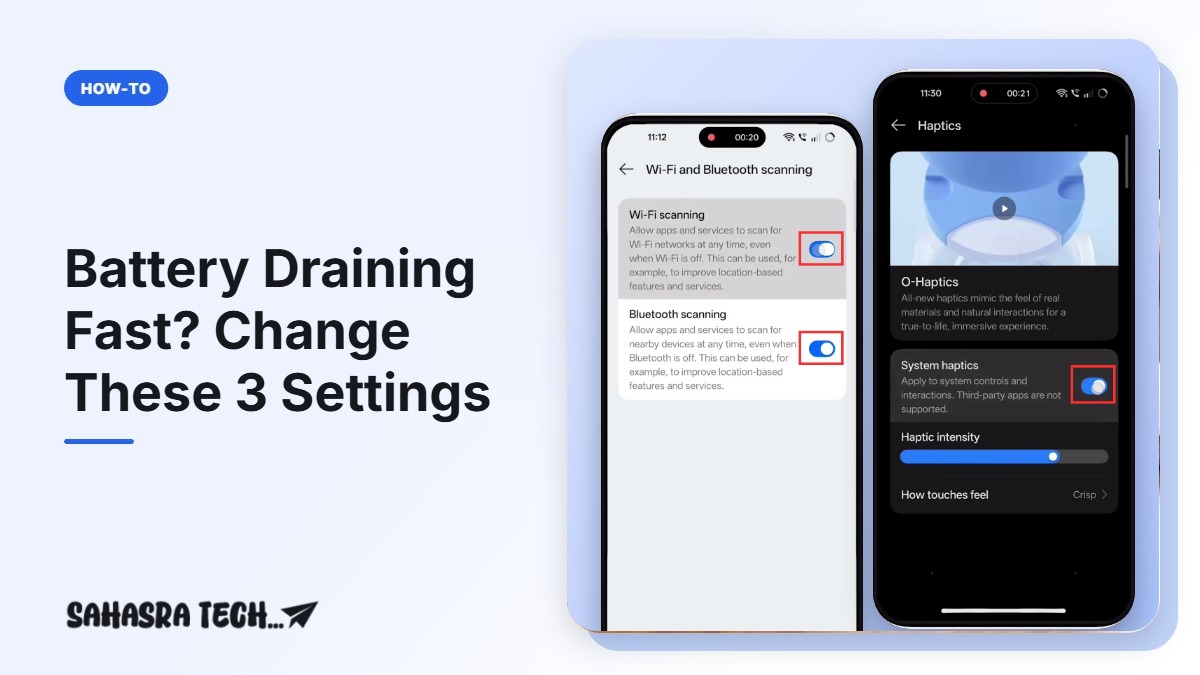
Came here from our reel? Here is the short answer: phone battery draining fast? Change these 3 settings. Turn off Wi-Fi and Bluetooth scanning, turn on Dark mode, and turn off System haptics. All three are free, take less than a minute, and work on almost every Android phone. Find your phone in the table below, then follow the steps with screenshots.
Where to find these 3 settings on your phone
The names are almost the same on every brand. Only the menu where they sit changes. Menu paths below were checked in October 2026.
| Your phone | 1. Wi-Fi & Bluetooth scanning (turn OFF) | 2. Dark mode (turn ON) | 3. Touch vibration (turn OFF) |
|---|---|---|---|
| OnePlus, OPPO, realme | Settings > Location > Wi-Fi and Bluetooth scanning | Settings > Display & brightness > Dark mode | Settings > Sound & vibration > Haptics > System haptics. This is the phone in our screenshots. On realme the haptics menu name can differ slightly. |
| Samsung Galaxy | Settings > Location > Location services (on some models: Improve accuracy) > Wi-Fi scanning and Bluetooth scanning | Settings > Display > Dark | Settings > Sounds and vibration > System sound/vibration control > turn off Touch interactions (keyboard vibration is a separate switch in Samsung Keyboard settings) |
| Xiaomi, Redmi, POCO | Settings > Location > Location services > Wi-Fi scanning and Bluetooth scanning | Settings > Display & brightness > Dark mode | Settings > Sound & vibration > Haptic feedback (or Vibrate on tap) |
| vivo, iQOO | Usually under Settings > Location. Fastest: search Settings for scanning | Settings > Display & brightness > Dark mode | Usually under Settings > Sound & vibration. Fastest: search Settings for haptics or vibration |
| Google Pixel, Motorola, Nothing | Settings > Location > Location services > Wi-Fi scanning and Bluetooth scanning | Settings > Display > Dark theme | Settings > Sound & vibration > Vibration & haptics > Touch feedback. On Android 16 it can also be under Settings > Accessibility > Vibration & haptics. |
| iPhone | Not available on iPhone | Settings > Display & Brightness > Dark | Settings > Sounds & Haptics > System Haptics |
Cannot find it in that place? Open Settings, tap the search bar at the top and type scanning, dark mode or haptics. That works on every brand, and it is exactly how we do it in the reel.
How to change the 3 settings (with screenshots)
The screenshots are from the phone used in our reel. The red boxes show where to tap. Your screens may look a little different, but the names are the same.
Setting 1: Turn off Wi-Fi and Bluetooth scanning
Even when you switch Wi-Fi and Bluetooth off, Android keeps searching for nearby networks and devices in the background to improve location. That background searching is what this setting stops.
- Open Settings and search for location.
- Tap Wi-Fi scanning in the results.
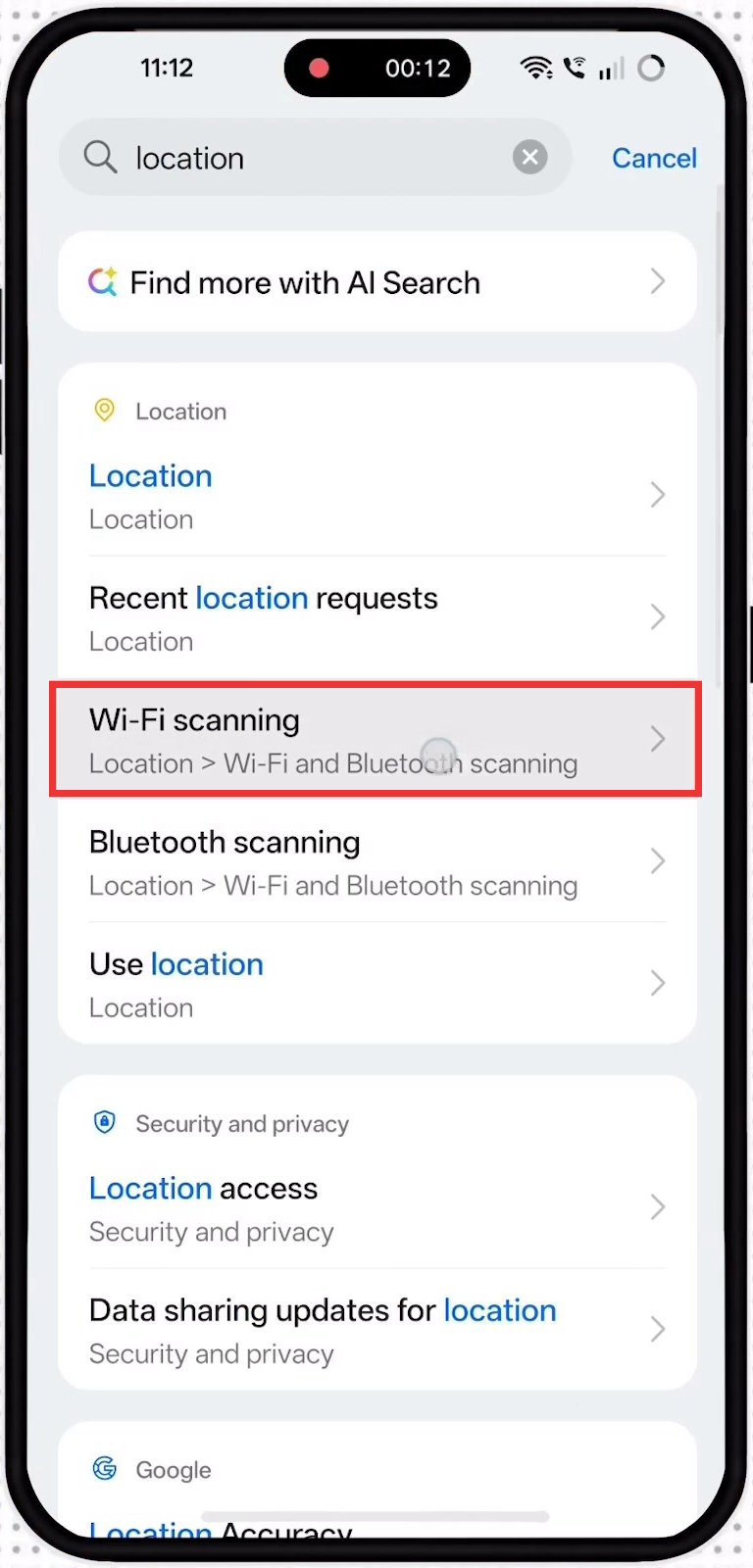
- Switch off Wi-Fi scanning.
- Switch off Bluetooth scanning.
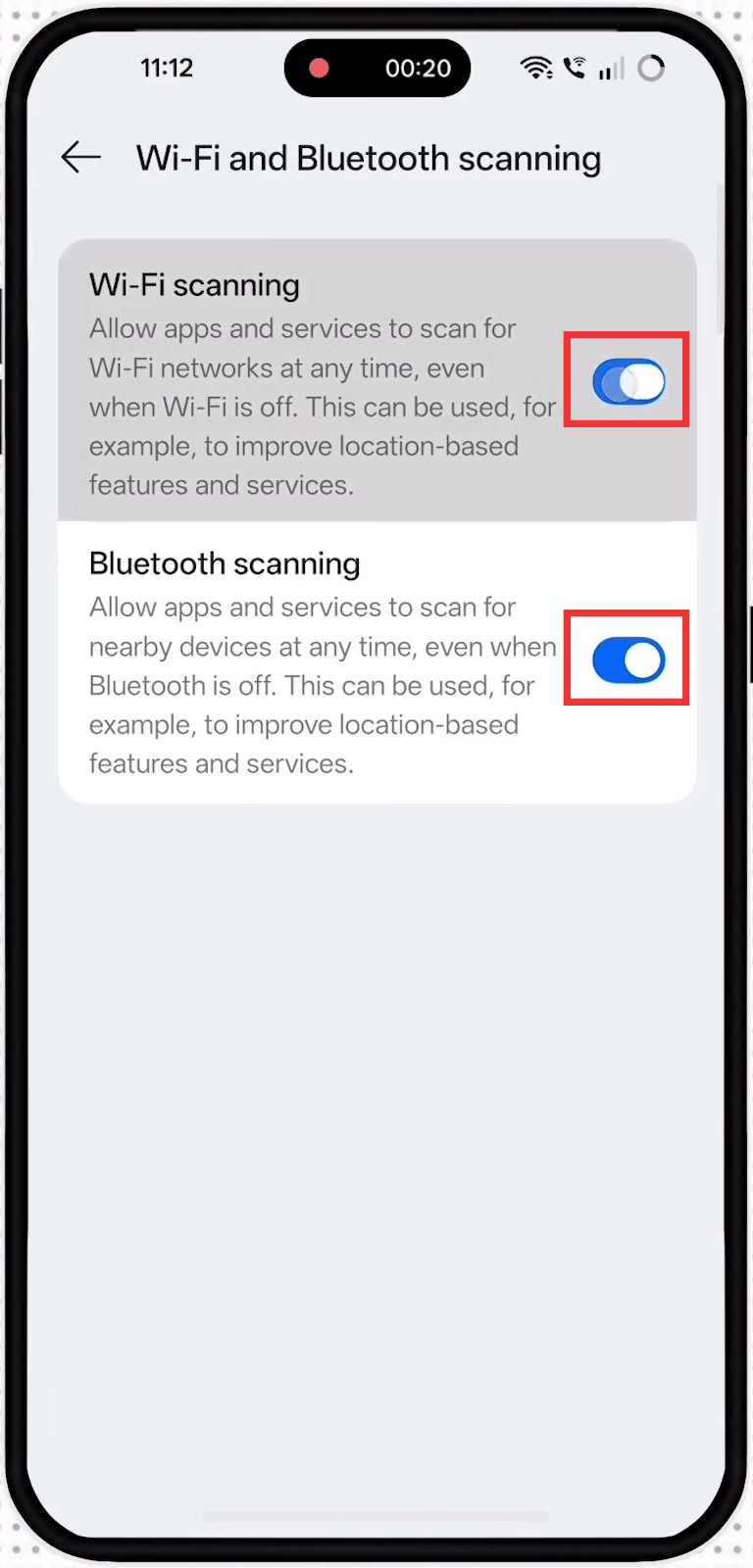
Your normal Wi-Fi and Bluetooth keep working exactly as before. Only the background scanning stops.
Setting 2: Turn on Dark mode
- Open Settings and search for dark mode.
- Tap Dark mode under Display & brightness.
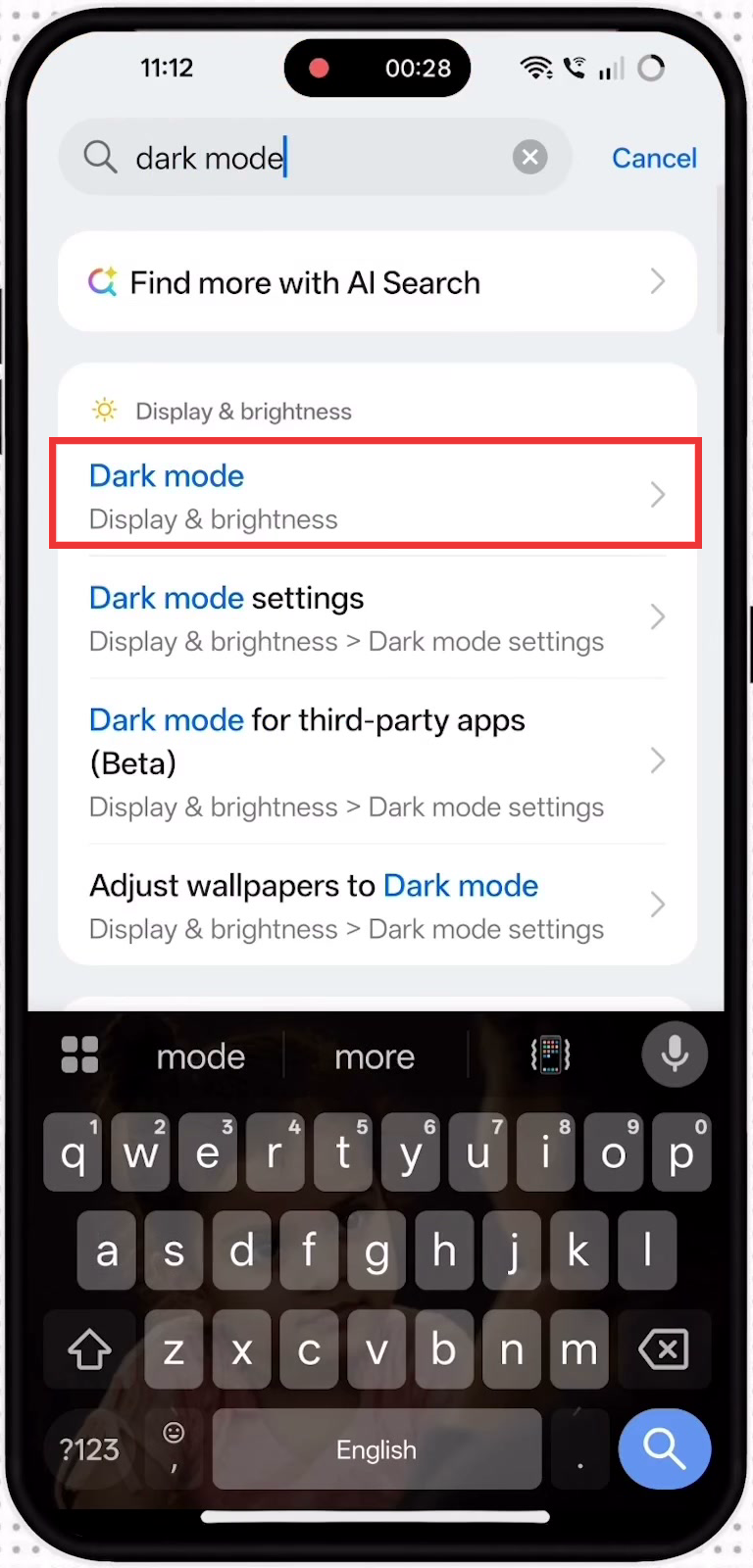
- Select Dark mode.
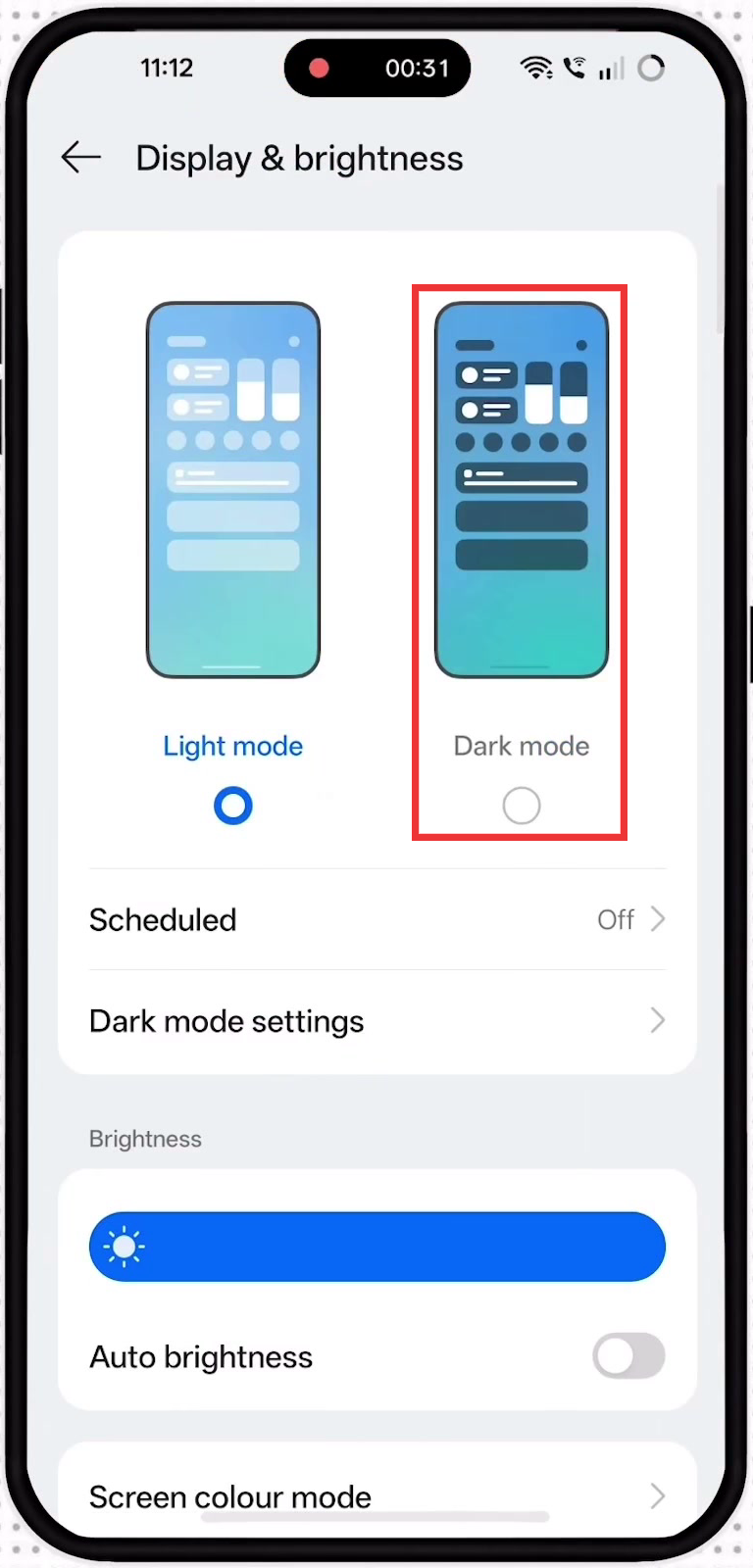
Dark mode saves the most battery on phones with an OLED or AMOLED screen. More on that below.
Setting 3: Turn off System haptics
System haptics is the small vibration you feel when you tap buttons, type or swipe. Every tap runs the vibration motor for a moment.
- Open Settings and search for haptics.
- Tap System haptics.

- Switch off System haptics.
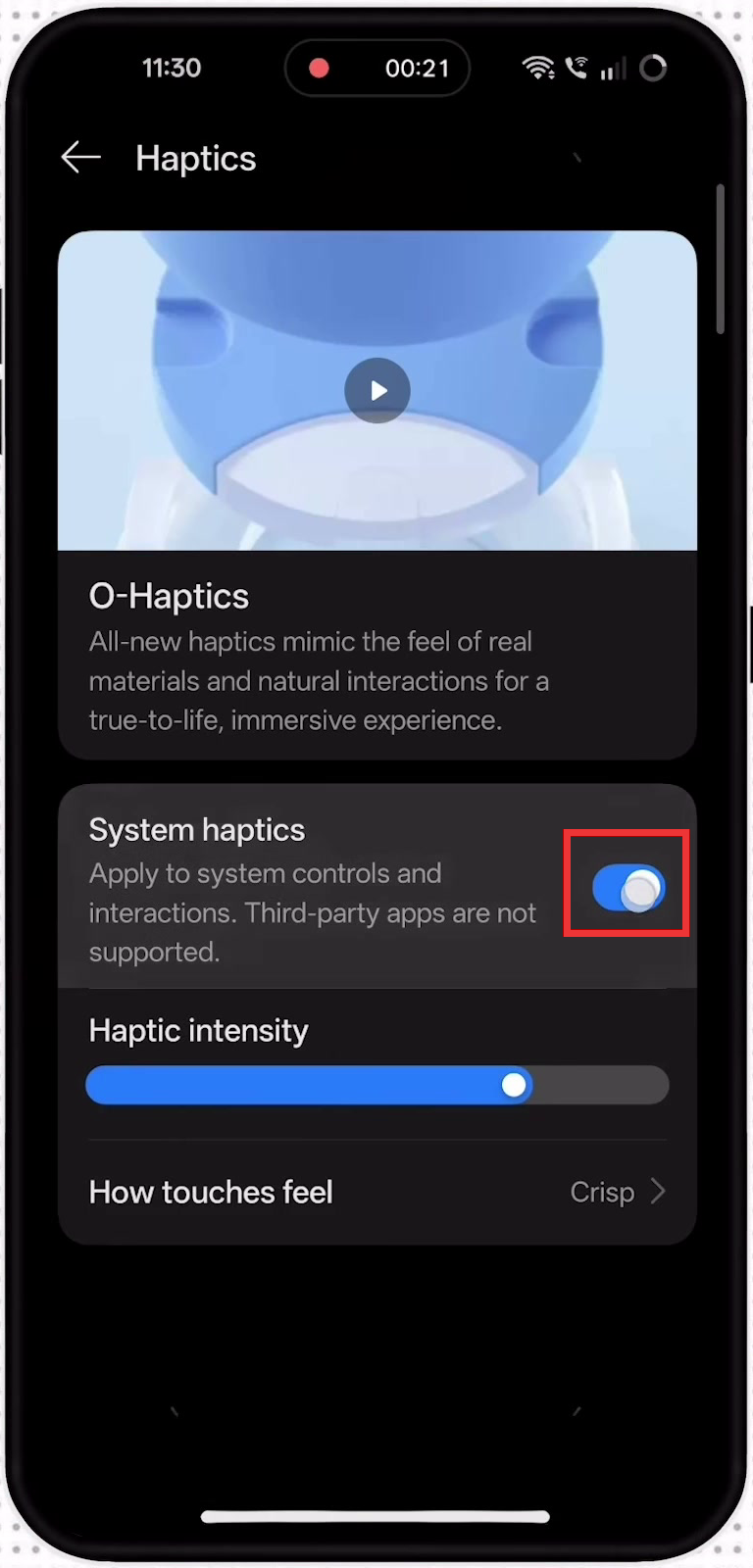
That is it. Calls and notifications still vibrate. Only the tap vibration is turned off.
How much battery will these settings save?
It depends on your phone and how you use it, so be careful with anyone who promises an exact number of hours.
- Wi-Fi and Bluetooth scanning: scanning wakes up the phone’s radios again and again in the background, even when you are not using the phone. Turning it off helps most on phones that lose battery while sitting idle.
- Dark mode: on OLED screens, dark pixels use less power. The saving is biggest when you keep brightness high. On LCD screens the saving is very small.
- System haptics: each vibration is tiny, but if you type and tap all day it adds up. This is the smallest saving of the three.
Does dark mode save battery on every phone?
No. It depends on the screen type.
- OLED or AMOLED screen: black pixels are switched off, so dark mode saves battery. Most mid-range and flagship phones from Samsung, OnePlus, vivo, iQOO, Xiaomi and Google use OLED.
- LCD screen: the backlight is always on, so dark mode looks nice but saves very little. Many budget phones use LCD.
To check your phone, search your model name with “display type” or look at the specs page of the phone on the brand’s website.
What you give up
- With scanning off, location inside buildings can be slightly less accurate. Google Maps on the road works normally with GPS.
- With System haptics off, taps and typing feel less “clicky”. You can turn it back on any time.
Phone battery draining fast even after this? Check these too
- Find the app that is eating battery: open Settings and search for Battery usage. If one app is on top every day, restrict its background use or uninstall it.
- Brightness: turn on Auto brightness and keep the screen timeout at 30 seconds.
- Updates: update the phone software and your apps. Battery bugs are often fixed in updates.
- Battery health: if the phone is 2 to 3 years old, the battery itself may be worn out. Phone Battery Health on Android: How to Check It and Habits That Help
- Charger: a slow or poor charger can make it feel like the battery drains fast. How to Choose a Fast Charger for Your Phone in India
Sources
- Android Help: Manage your Android device’s location settings
- Xiaomi Support: Turn on or off Bluetooth scanning
- SamMobile: What is dark mode and does it help battery life
- Samsung Support: Sounds, vibrations and notifications on Galaxy devices
- Android Developers: Excessive Wi-Fi scanning in the background
FAQ
Which settings drain the battery the most on Android?
Usually the screen and the apps you use the most. Open Settings and search for Battery usage to see which app or feature used the most battery today. The three settings in this guide cut background work that runs even when you are not using the phone.
Does turning off Wi-Fi scanning stop my Wi-Fi from working?
No. Wi-Fi and Bluetooth keep working normally. Turning off scanning only stops the phone from looking for nearby networks and devices when Wi-Fi or Bluetooth is switched off. Location inside buildings can be a little less accurate.
Does dark mode really save battery?
On phones with an OLED or AMOLED screen, yes, because black pixels are switched off. Most mid-range and flagship phones sold in India today use OLED. On phones with an LCD screen the backlight stays on, so dark mode saves very little battery.
Will turning off haptics stop vibration for calls and messages?
No. System haptics only controls the small vibration when you tap buttons, type or use gestures. Vibration for calls and notifications is a separate setting under Sound and vibration.
Is it safe to change these settings?
Yes. All three are normal settings that you can switch back at any time. Nothing is deleted and no app is uninstalled.
Do these settings work on iPhone?
iPhone does not have the Wi-Fi scanning setting, but you can turn on Dark mode in Settings > Display & Brightness and turn off System Haptics in Settings > Sounds & Haptics.