
In This Guide Show
Getting a new phone is exciting. Opening WhatsApp on it and seeing zero chats – years of family photos, voice notes from your grandmother, that one important document someone sent you in 2021 – is not.
I've helped enough friends rescue lost WhatsApp chats to know this happens a lot, and almost always because of one skipped step. So here's a calm, step-by-step guide to doing it properly. It looks long, but the actual work is about 15 minutes plus waiting time.
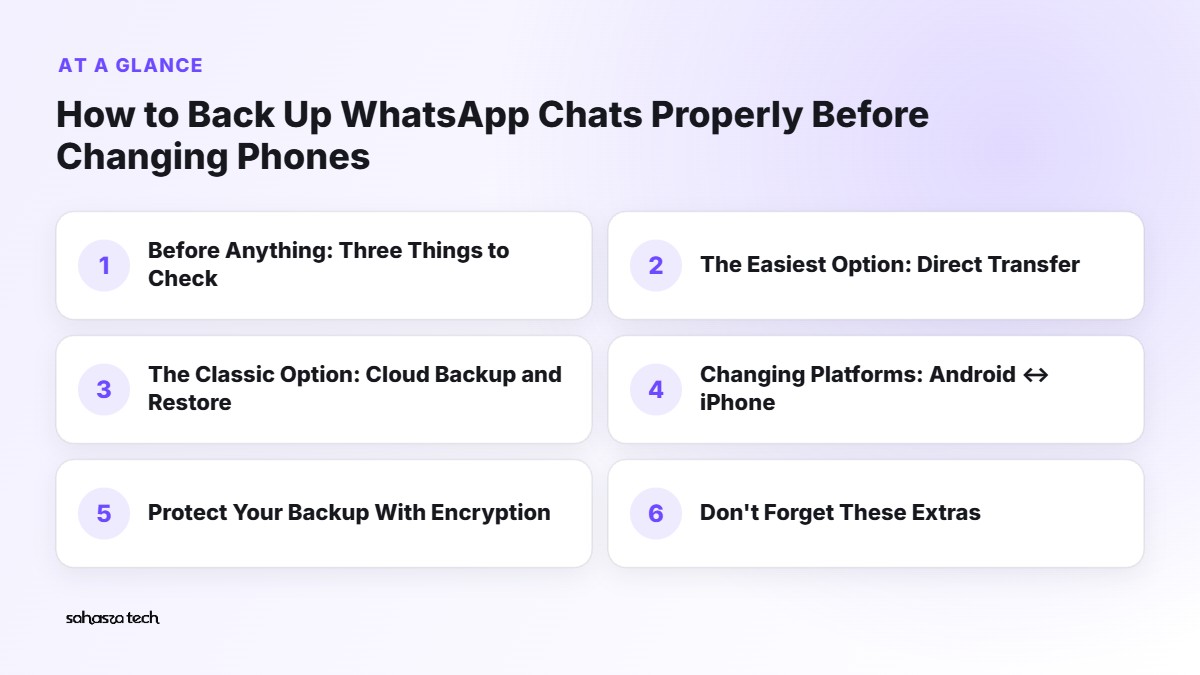
Before Anything: Three Things to Check
Do these on your old phone first.
1. Know your phone number situation
WhatsApp restores chats only to the same phone number. If you're also changing your number, use WhatsApp's Change number feature first (Settings → Account → Change number). It moves your account to the new number and can notify your contacts.
2. Know your two-step verification PIN
If you have two-step verification on (you should!), WhatsApp will ask for that 6-digit PIN on the new phone. Forgot it? Reset it now in Settings → Account → Two-step verification → Change PIN, while you still have access.
3. Free up some junk first
Your backup will be faster and smaller if you clean up first. Go to Settings → Storage and data → Manage storage, and delete big forwarded videos and media you don't need.
The Easiest Option: Direct Transfer (Same Platform)
WhatsApp now has a built-in way to move chats directly from one phone to another of the same type, without relying on cloud backups.
Android to Android
- 1. On your old phone, go to Settings → Chats → Transfer chats.
- 2. On your new phone, install WhatsApp and verify your number.
- 3. When it offers to transfer from your old phone, follow the steps – you'll scan a QR code shown on one phone with the other.
- 4. Keep both phones close, on the same Wi-Fi, with location and Wi-Fi turned on, and plugged in if possible.
- 5. Wait. Large chat histories can take a while.
iPhone to iPhone
- 1. On your old iPhone, go to Settings → Chats → Transfer Chats to iPhone.
- 2. Follow the QR code process with your new iPhone.
Alternatively, if you're setting up the new iPhone using Apple's Quick Start, WhatsApp data can come across along with everything else.
Direct transfer is great, but I'd still make a cloud backup too (next section). If something goes wrong mid-transfer, you'll have a safety net.
The Classic Option: Cloud Backup and Restore
On Android (Google account backup)
- 1. Open WhatsApp → Settings → Chats → Chat backup.
- 2. Check Google Account – make sure it's the account you'll use on the new phone.
- 3. Decide on Include videos. Videos make backups much bigger. If storage is tight, you can turn it off – but then videos won't come across.
- 4. Tap Back up. Wait for it to finish completely. Don't close WhatsApp halfway.
- 5. Check the Last backup time and size on the same screen. It should show today's date and time.
Storage note: WhatsApp backups on Android now count toward your Google account storage (the free 15GB shared with Gmail and Photos). If your Google storage is full, the backup may fail. Clear some space first or switch off "Include videos".
To restore on the new Android phone:
- 1. Sign in to the same Google account on the new phone.
- 2. Install WhatsApp from the Play Store and verify your number.
- 3. When it finds the backup, tap Restore.
- 4. Wait for chats to restore, then media will continue downloading in the background.
On iPhone (iCloud backup)
- 1. Make sure you're signed into iCloud and iCloud Drive is on.
- 2. In WhatsApp → Settings → Chats → Chat Backup → Back Up Now.
- 3. On the new iPhone, sign in with the same Apple ID, install WhatsApp, verify your number, and tap Restore Chat History.
iCloud's free storage is small, so you may need to clear space or exclude videos.
Changing Platforms: Android ↔ iPhone
This is where people get stuck, because Google backups can't be restored on iPhone and iCloud backups can't be restored on Android.
Android to iPhone
Use Apple's Move to iOS app. During the new iPhone's setup, choose to move data from Android, and select WhatsApp in the list of things to transfer. Follow the prompts on both phones. WhatsApp's help centre has the latest step-by-step details, which do change from time to time.
Your new iPhone should be fresh (or factory reset) for this method to work.
iPhone to Android
Options depend on your Android brand. Samsung phones support moving WhatsApp data through Smart Switch (sometimes with a cable), and many newer Android phones support transfer during setup. WhatsApp has also been adding direct cross-platform transfer options. Check WhatsApp's Help Centre for the current method for your phone.
My advice: for cross-platform moves, read the official WhatsApp help article for your exact direction the day you do it. These methods change more than most.
Protect Your Backup With Encryption
Your chats are end-to-end encrypted in the app, but cloud backups aren't end-to-end encrypted unless you turn it on.
Settings → Chats → Chat backup → End-to-end encrypted backup
You'll set a password or use a 64-digit encryption key. If you forget it, nobody – not even WhatsApp – can recover your backup. Write it down and keep it somewhere safe. Not in a WhatsApp chat to yourself (you'd be surprised).
Don't Forget These Extras
A few things that often get left behind:
- Documents and files – they're part of the backup, but confirm important ones arrived. For anything critical (like a scanned ID), keep a separate copy in DigiLocker, Google Drive or your laptop.
- WhatsApp Business – it has its own separate backup. Back it up separately if you use both apps.
- Stickers and wallpapers – mostly come across, but don't be shocked if a few custom ones go missing.
- Locked chats – check they appear after restoring; you may need to set up chat lock again.
- Linked devices – after switching, WhatsApp Web and desktop sessions may need to be linked again.
- Community and group admin roles – these move with your account, but double-check important groups.
Before You Wipe or Sell the Old Phone
Please don't factory reset the old phone the same day. Here's my rule:
- 1. Use the new phone for at least a few days.
- 2. Open your most important chats and check that photos, voice notes and documents are there.
- 3. Only then factory reset the old phone.
Before handing the old phone to someone else:
- Log out of WhatsApp (or just factory reset – that removes it).
- Remove your Google account / Apple ID first, so the new owner doesn't hit a lock screen.
- Take out your SIM and memory card.
If Something Goes Wrong
"No backup found." You're probably signed into a different Google account or Apple ID, or using a different phone number. Check both.
"Backup stuck at 0%" or very slow. Switch to strong Wi-Fi, keep the phone plugged in, and keep WhatsApp open. Large backups with videos can take hours.
"Restored, but media is missing." Media often keeps downloading after chats appear. Keep WhatsApp open on Wi-Fi for a while. If you turned off "Include videos", those won't come across.
"Can't remember my encrypted backup password." Sadly, there's no recovery. This is why writing it down matters.
My Personal Checklist
- 1. Clean up big media.
- 2. Confirm two-step verification PIN.
- 3. Make a fresh cloud backup and check the date/time.
- 4. Do a direct transfer if available.
- 5. Check important chats on the new phone for a few days.
- 6. Then, and only then, reset the old phone.
FAQ
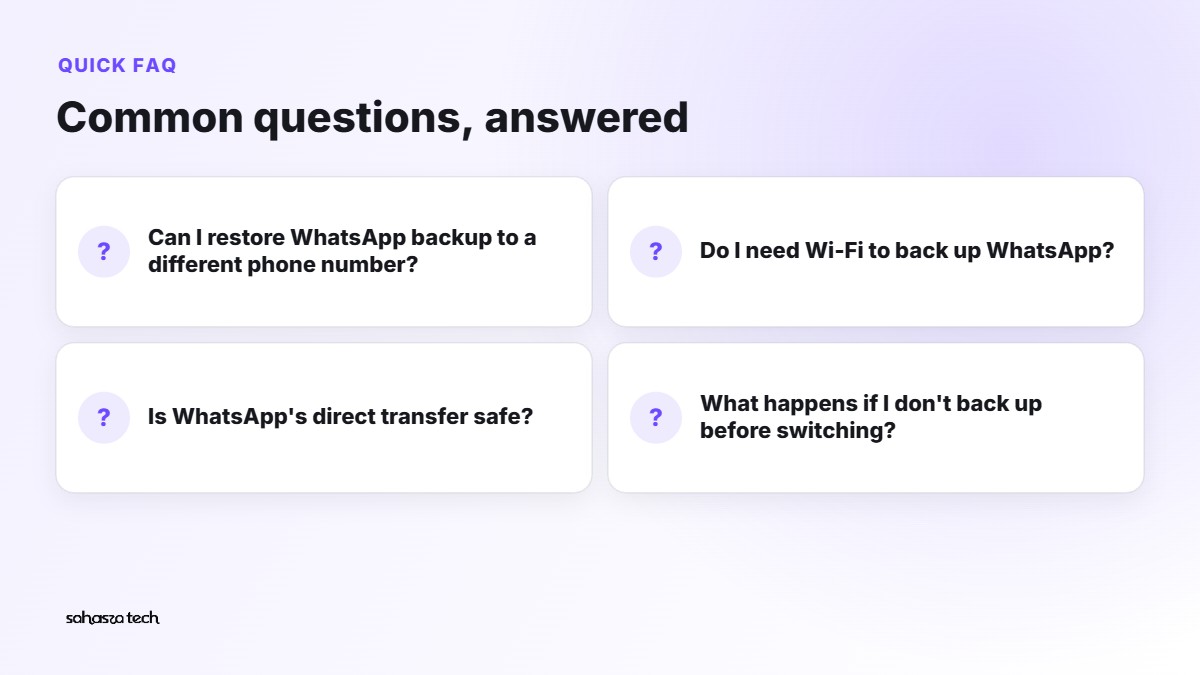
Can I restore WhatsApp backup to a different phone number? No. Backups restore only to the same number. Use the Change number feature first if you're switching numbers.
Do I need Wi-Fi to back up WhatsApp? Not strictly, but backups can be large. Wi-Fi is faster and saves your mobile data.
Is WhatsApp's direct transfer safe? Yes, it's the official built-in method. The phones connect directly to each other.
What happens if I don't back up before switching? Your chats from the old phone won't appear on the new one. If the old phone still works, you can go back and make a backup.
2 thoughts on “How to Back Up WhatsApp Chats Properly Before Changing Phones”