
In This Guide Show
Jatayu Edit AI Video Prompt
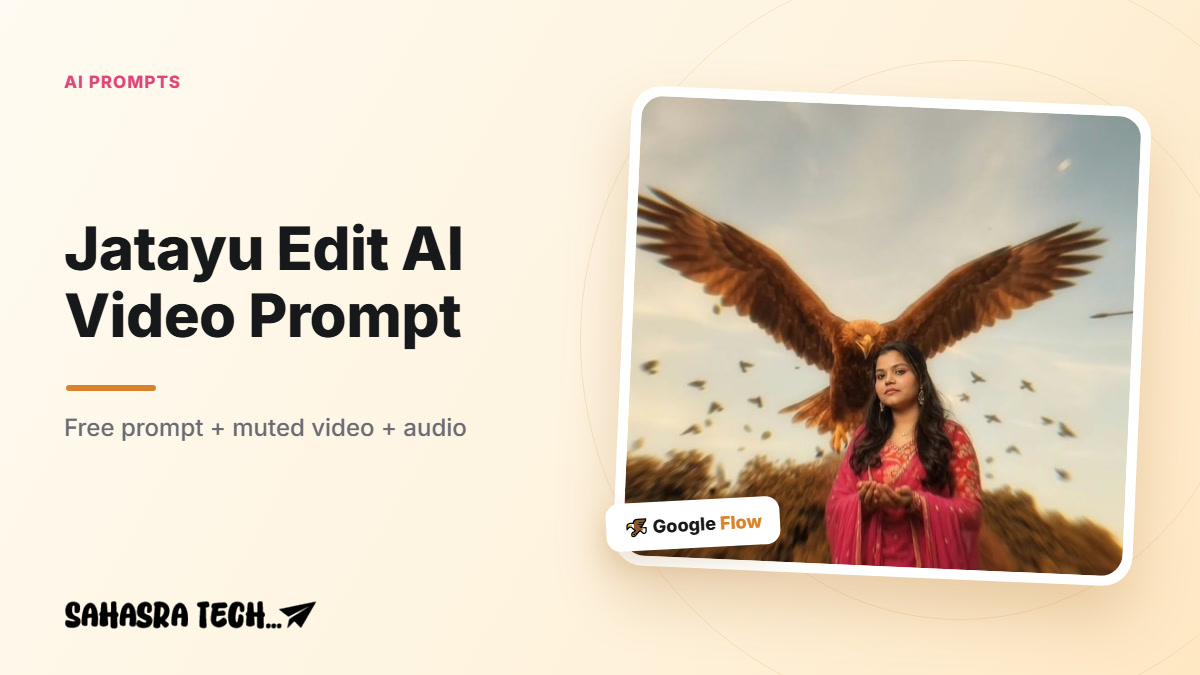
The Jatayu edit is the new viral trend on Instagram. A person stands calmly under a golden sky, and a giant reddish-brown eagle, just like Jatayu from the Ramayana, rises up behind them with its wings spread wide while a flock of birds flies around. You can make this same video with your own photo using Google Flow. On this page you get the exact prompt, the muted reference video, the audio file and the exact settings we used.
Watch Our Jatayu Edit
This is the reel we made with this prompt. Watch it once so you know what your video will look like.
Download the Reference Video and Audio
You need two files. The muted reference video has no sound, and you upload it in Google Flow. The Jatayu audio is the same 10 seconds of music, and you add it to your video before posting.
Before You Start
- Upload the reference video without sound. Only then will Google Flow generate your video. A video with sound can fail, so always use the muted file from this page.
- Use one clear photo. A front-facing photo with your face fully visible works best.
- Upload order matters. The reference video becomes
@video1and your photo becomes@image1. - You need a Gemini subscription. Video generation in Google Flow uses AI credits, which come with a Google AI (Gemini) plan.
How to Make the Jatayu Edit in Google Flow
- Download the muted reference video and the audio from the buttons above.
- Open the Flow app (or labs.google/flow) and create a new project.
- Tap + and upload the muted reference video first, then upload your photo. Select both.
- Copy the prompt below and paste it in the prompt box.
- Set the settings exactly as in the table below.
- Tap the send arrow. Anthe! Your Jatayu video starts generating.
Jatayu Edit Prompt
Use @video1 as the strict reference for all actions, gestures, timing, camera movements, framing, editing, the giant eagle, the flying birds and all visual effects.

Replace the man in @video1 with @image1. Preserve the complete character design from @image1: face, hair, beard, skin tone, body proportions, clothing and distinctive details. His face must be clearly visible and exactly @image1 in every frame, from the first frame to the last — never the original man’s face, never blended or morphed.

Keep the giant reddish-brown eagle (Jatayu) exactly as in @video1: the same huge size, the same golden-brown glowing feathers, the same moment it rises up behind him with wings spread wide, the same slow powerful wingbeats and the same flock of small birds flying around. Keep the original sky, clouds, dry bushes, lamp posts, warm golden color grade, low camera angle, duration and aspect ratio. Change only the man’s appearance.

No text anywhere: do not copy or create any words, letters, titles or captions from @video1. The sky stays clean.

NEGATIVES: any text, letters, words, titles, captions, subtitles, original man’s face, identity swap, face morphing, appearance drift, altered actions, smaller eagle, missing eagle, extra characters, distorted faces, extra limbs, distorted wings, flickering, new scenes, logos, watermarks.
For girls: the prompt works with your photo too. Upload your photo as @image1 and the person in the video is replaced with you, while the eagle and the effects stay the same.
Google Flow Settings
| Type | Video |
| Aspect ratio | 16:9 (the reference video is horizontal) |
| Quality | 720p |
| Outputs | x1 |
| Model | Omni Flash |
Add the Music and Post Your Reel
- Download your generated video from Google Flow.
- Open it in CapCut, VN or InShot and add the Jatayu audio from this page. It is the same 10 seconds, so it fits your video exactly.
- Add a caption and post it as a Reel. You can also post directly and choose the trending sound with Use audio on Instagram.
Tips for the Best Result
- Use a sharp photo taken in daylight, with your face looking at the camera.
- Avoid photos with sunglasses, caps or hands covering your face.
- Never upload the original reel with sound in Flow. Always use the muted file.
- If the face does not match or the eagle looks small, simply generate again. Flow gives a slightly different result each time.
Frequently Asked Questions
Is the Jatayu edit prompt free?
Yes. The prompt, the muted reference video and the audio on this page are free. To generate the video in Google Flow you need a Google AI (Gemini) plan with AI credits.
Why does Google Flow show an error with my video?
This usually happens when the reference video has sound. Upload the muted reference video from this page, which has no sound and is only 10 seconds long.
Can girls also make the Jatayu edit?
Yes. Upload your own photo as @image1. The person in the video is replaced with you, and the eagle and the effects stay the same.
Which aspect ratio should I choose?
Choose 16:9. The reference video is horizontal, so 16:9 keeps the eagle and the sky the same as the original.
More AI & Tech Tricks
Save this page so you can come back to the prompt anytime. For more AI prompts, tech tricks and useful tools,
For more tech & AI updates
Tip: Use only your own photos or photos you have permission to edit, and don’t use AI videos to mislead people or to make fake videos of real people.